
How to Explore Patents
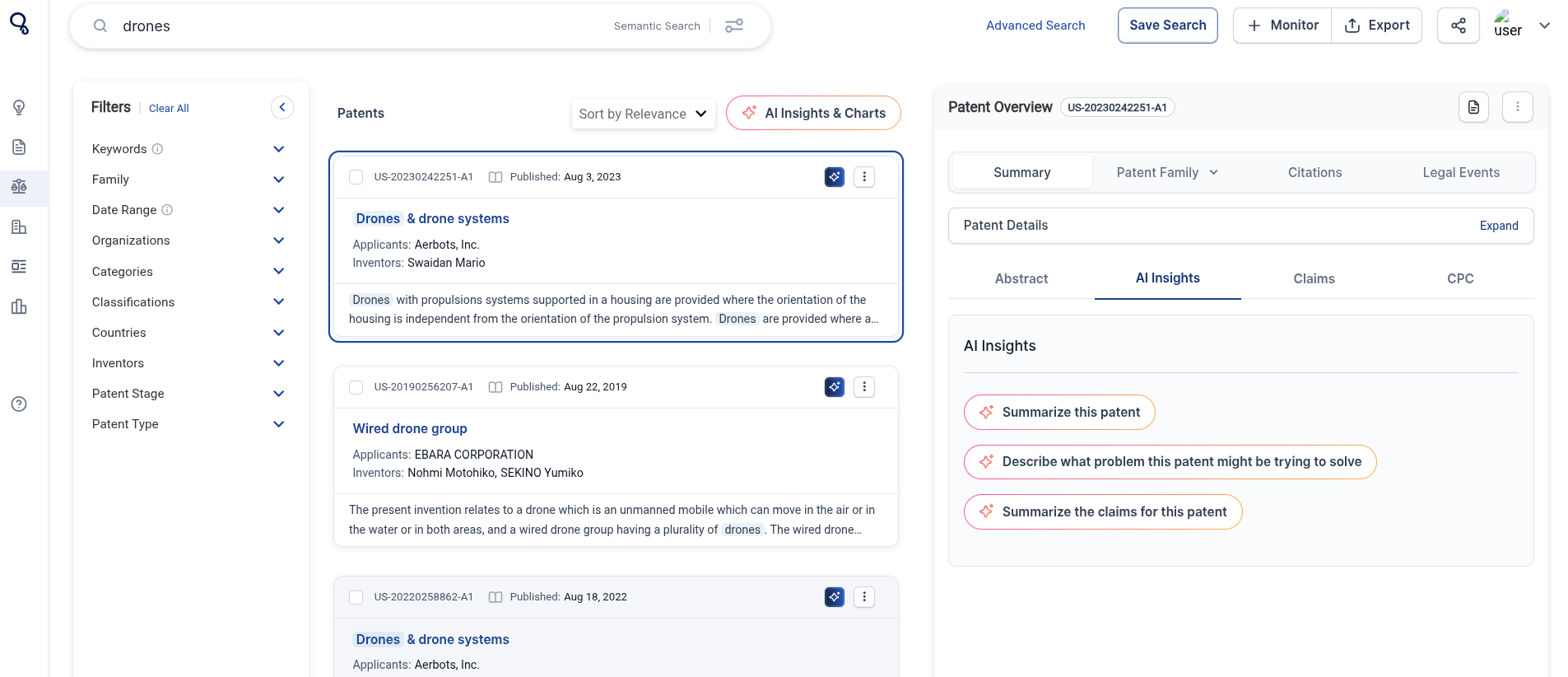
Click on “Patents” on the sidebar to view all patents relating to your search.
On the left sidebar, you can filter the search results by Keywords, Family, Date Range, Organizations, Categories, Classifications, Countries, Inventors, Patent Stage and Patent Type. You can sort by Relevance and Date by clicking “Sort by Relevance”.
You can view AI insights for each patent by clicking on the patent and then on “AI Insights” located on the right.
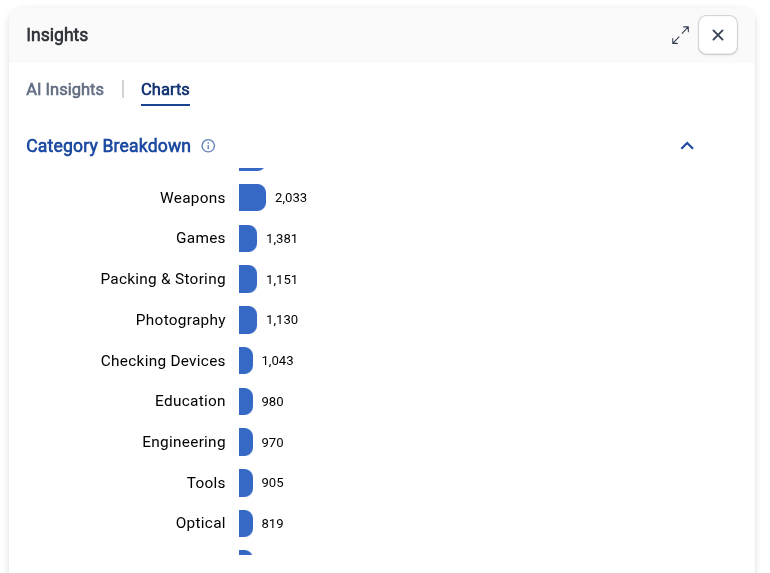
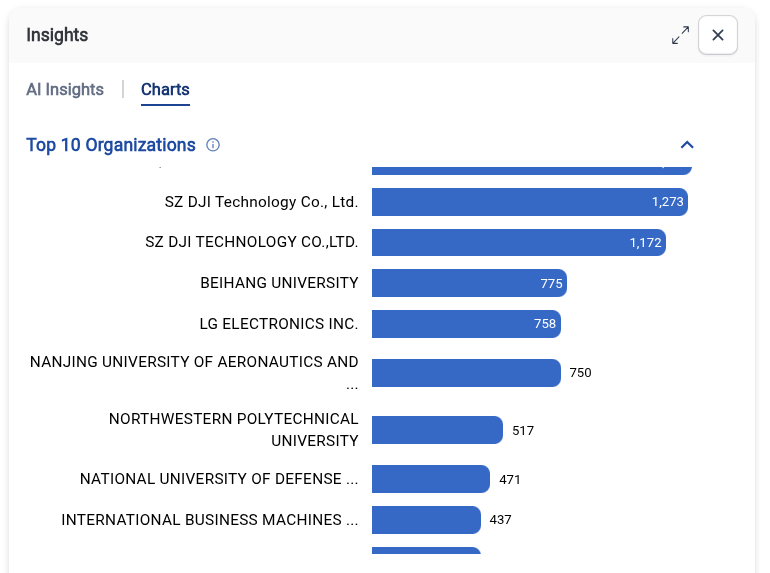
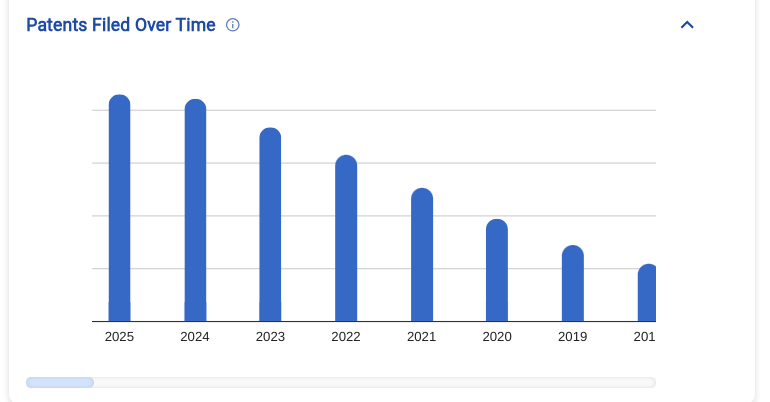
By selecting “Charts” you can see a patent Category Breakdown, Top 10 Organizations and Patents Filed Over Time.
Building AI Reports for Patents
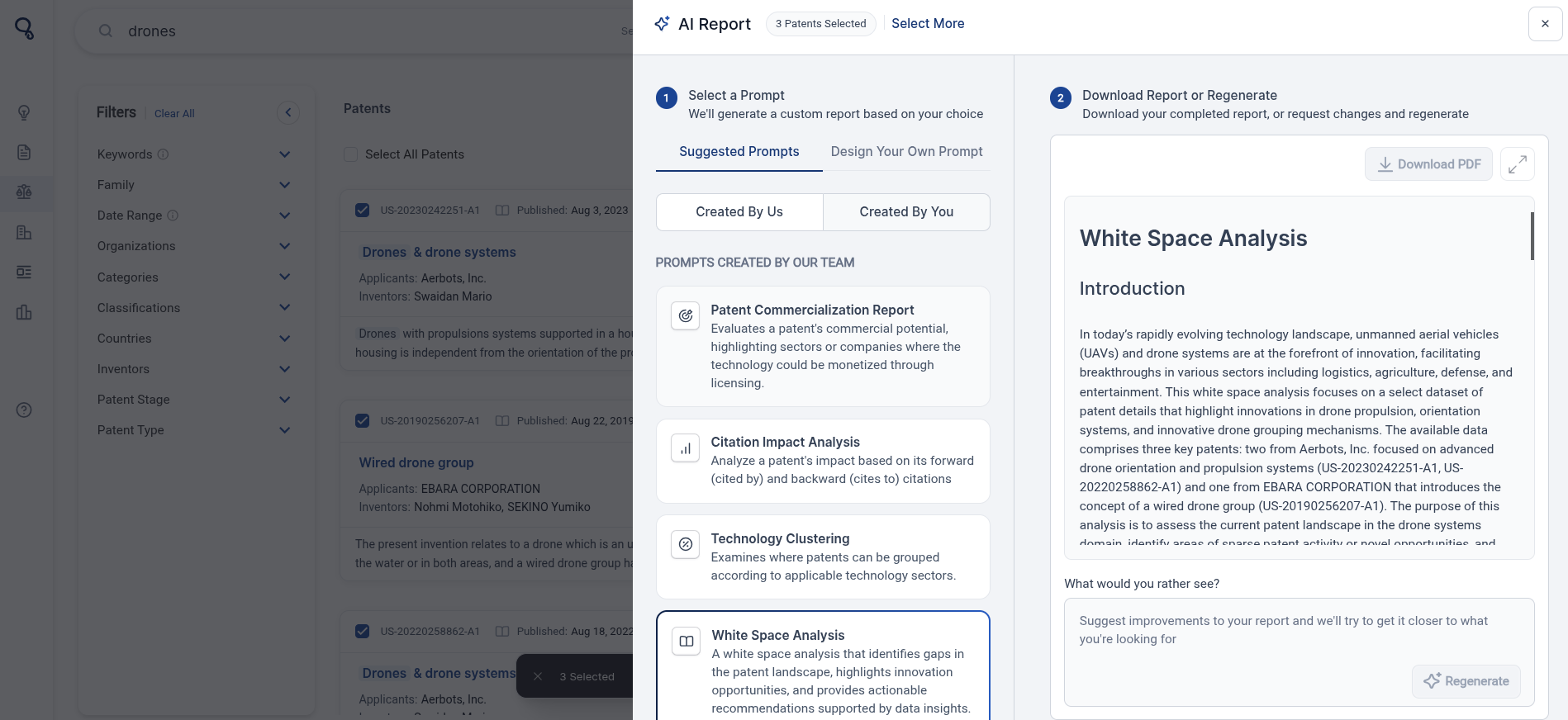
You can also build an AI Report on selected patents. Once the relevant patents are selected, click the 'Build AI Report' button at the bottom of the page and use either our pre-loaded prompts, or create your own, to build a customizable AI Report which can be downloaded to pdf.
For a guide to building AI Reports for Patents, view this article here.
Exploring Patents
How to Explore Patents
Click on “Patents” on the sidebar to view all patents relating to your search.
On the left sidebar, you can filter the search results by Keywords, Family, Date Range, Organizations, Categories, Classifications, Countries, Inventors, Patent Stage and Patent Type. You can sort by Relevance and Date by clicking “Sort by Relevance”.
You can view AI insights for each patent by clicking on the patent and then on “AI Insights” located on the right.
By selecting “Charts” you can see a patent Category Breakdown, Top 10 Organizations and Patents Filed Over Time.
Building AI Reports for Patents
You can also build an AI Report on selected patents. Once the relevant patents are selected, click the 'Build AI Report' button at the bottom of the page and use either our pre-loaded prompts, or create your own, to build a customizable AI Report which can be downloaded to pdf.
For a guide to building AI Reports for Patents, view this article here.


Register here
Subscribe to receive the latest blog posts to your inbox every week.
Keep Reading
Google's newest frontier AI model, Gemini 4 Argon, is now available in Cypris.
Released in October 2026, Argon is designed for deep reasoning, complex research, and multi-step analytical tasks. Its strengths in scientific understanding, long-context reasoning, and detailed synthesis make it particularly promising for R&D and intellectual property professionals.
.png)
How Does Gemini 4 Argon Perform?
Google DeepMind's published evaluations highlight several capabilities relevant to R&D and IP research:

LABBench2 is particularly relevant because it evaluates nearly 1,900 scientific research tasks, including literature interpretation, patent questions, scientific figures, and experimental research.
Argon's strong long-context performance is also promising for research workflows requiring the synthesis of information across extensive technical material.
Source: Google DeepMind's published evaluations. Results are benchmark-specific and do not directly measure accuracy within Cypris.
Real-World Applications in Scientific Research
Google has highlighted early adoption by Isomorphic Labs, where researchers are using Argon to analyze complex chemistry patents and technical documents for drug discovery.
According to Google, Argon has helped researchers extract and synthesize critical information from lengthy patents, including documents spanning hundreds of pages, reducing certain research workflows from weeks to hours.
Read Google's full announcement.
Our Early Testing at Cypris
In Cypris's internal testing, Gemini 4 Argon outperformed Gemini 3.1 Pro on every question evaluated and delivered answer quality roughly comparable to Claude Opus 5.5 at a slightly lower cost.
We found Argon to be a slower, deeper-thinking model that examines more sources and produces answers approximately 3x longer than Opus 5.5.
Based on these early results, we recommend trying Argon for:
- White space analysis: Identifying emerging technologies, research gaps, and innovation opportunities.
- Competitive intelligence: Comparing competitors' technologies, research directions, and patent portfolios.
- Technical landscape research: Synthesizing scientific literature and patent intelligence into detailed comparative analyses.
When Should You Use Argon?
Choose Gemini 4 Argon when depth and comprehensiveness matter more than speed. Its detailed outputs make it particularly useful for complex research questions that require evaluating multiple technologies, competitors, or bodies of evidence.
For simpler questions or tasks requiring concise, fast responses, other models may be more appropriate.
You can select Gemini 4 Argon directly from the model picker in Cypris Q.
We're excited to announce the release of Cypris Memory.
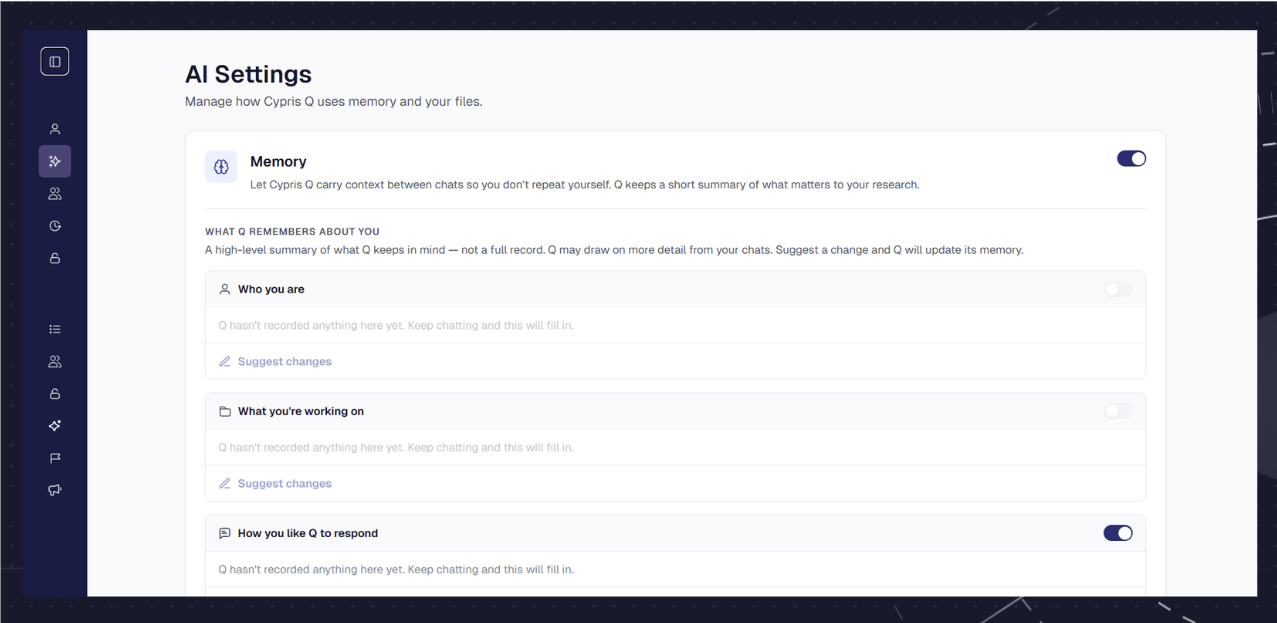
Q now carries context across sessions, remembering your role, research priorities, active projects, and response preferences.
Every conversation begins with a deeper understanding of your work, so Q can operate less like a blank slate and more like an agent built around you.
.png)
What Q can now remember
- Who you are: Your role, industry, and research focus
- What you’re working on: Active projects, technologies, and topics you return to
- How you want responses delivered: Whether you prefer long, detailed answers, concise and direct responses, or more visual-heavy outputs
- What you explicitly tell it: Ask Q to remember context or preferences directly from any chat
Importantly, we designed Memory so that it should never bias the research strategy. Its impact is primarily felt at the response level, helping personalize how results are delivered while maintaining research objectivity.
You're always in control
You can manage everything Q remembers in AI Settings, located within your User Settings. From there, you can review, edit, or delete memory at any point.
Memory is isolated at the individual user level. Nothing in your memory is used to train models or leaves your Cypris instance, and you can review, edit, or delete it at any time.
Memory should make Cypris feel less like a research tool you need to configure and more like an assistant that understands your work and gets better with use over time.
As always, please feel free to reach out to our team with any questions.
Best,
Cypris Team
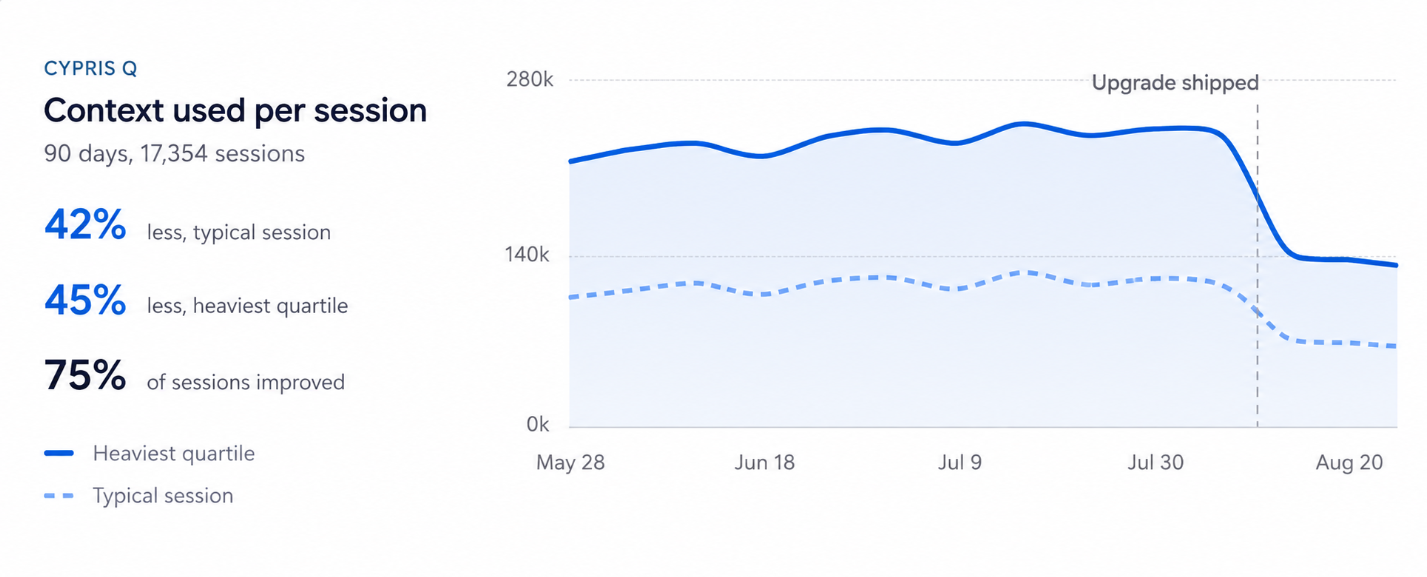
We’ve rolled out a major upgrade to how Cypris Q manages context across complex research workflows, cutting context usage by up to 50% across the majority of sessions.
Cypris now uses context more intelligently across images, websites, tool calls, source analysis, and Q’s internal planning. The result is more focused reasoning, less unnecessary processing, and fewer credits required to execute complex research.
Importantly, this does not reduce the number of patents, papers, or other sources Q can analyze. Instead, Q is using less context on unnecessary intermediate steps, leaving more capacity for the research itself.
More Efficient Context Across Every Session
The latest upgrade improves how Q decides what information to keep active, what to compact, and what to retrieve only when needed.
Across our internal data, these changes have reduced context usage by up to 50% for 75% of Cypris sessions. That gives Q more room for deeper analysis while improving the efficiency and cost of running sophisticated research workflows.
For users, that means longer sessions, more efficient execution, and less credit consumption on complex tasks.
Infinite Session Length
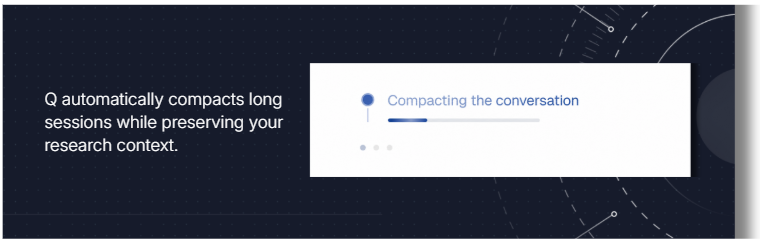
Q can now automatically compact long conversations while preserving the history of your research.
A dedicated Transcript subagent can retrieve exact details from earlier in the session when needed, allowing users to continue working across extended research workflows without losing access to prior discussion.
Deeper Source Analysis
A new Source Analysis subagent can read and reason across the full text of individual sources.
This gives Q more complete context when analyzing technical documents and allows it to go deeper into the underlying source material rather than relying only on limited excerpts.
Smarter Internal Planning
We’ve also improved how Q plans complex research tasks.
Q now builds more efficient research plans, using the tools and analysis required for the task without taking unnecessary steps. This improves reasoning quality while reducing unnecessary token and credit usage.
Optimized Web, Image, and Tool Context
Cypris now uses context more efficiently when working with:
- Websites and individual pages
- Images
- Tool calls and outputs
- Source analysis
- Q’s internal planning
By reducing unnecessary context and processing across these areas, more of each session can be devoted to meaningful analysis.
Lower Credit Consumption for Complex Research
These infrastructure improvements also translate directly into more efficient credit usage.
Complex research workflows can now require materially fewer Cypris credits to complete because Q is processing less unnecessary context while preserving the information it needs to perform the task.
Built for Longer, Deeper Research
The goal is simple: help researchers run longer, deeper, and more complex tasks in Cypris without the context limitations or unnecessary compute of general-purpose AI systems.
More improvements are already planned, including greater visibility into Q’s planning process and dedicated infrastructure for research across a wider array of documents.