
How we can help?
Popular Articles
The Highlights section is designed to provide an overview of key activities in your market within a given time frame based on your search results.
You will see the number of Research Papers, Patents and Organizations relevant to your search.

You can filter your search results by Relevance and Date by clicking the drop-down arrow.

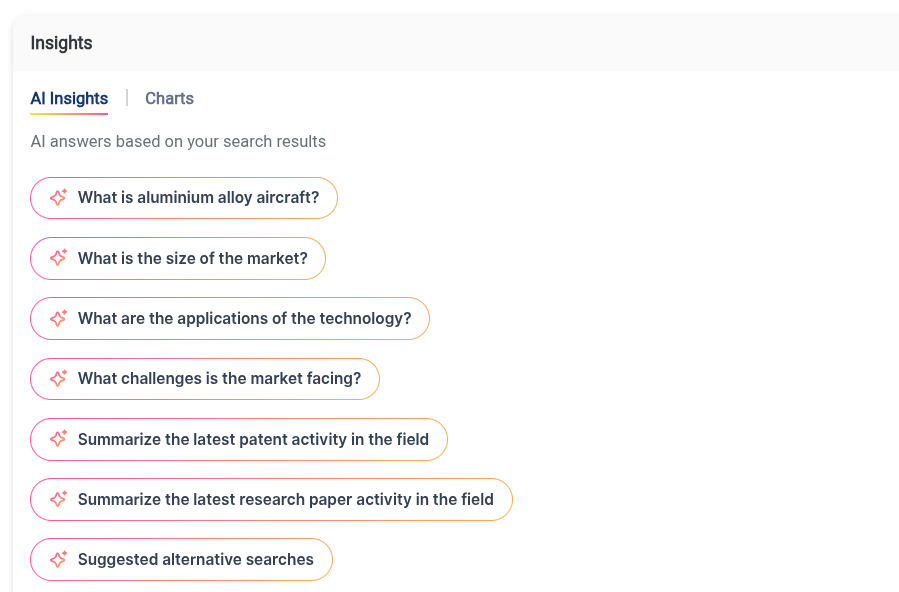
Additionally, you will see AI Insights under the Highlights section based on your search results.
Click on each insight to read AI summaries based on your search results.
By clicking “Charts” under the Highlights section, you can see the Patent Activity Map, Top 10 Organizations in the space, and Patents vs papers over time.
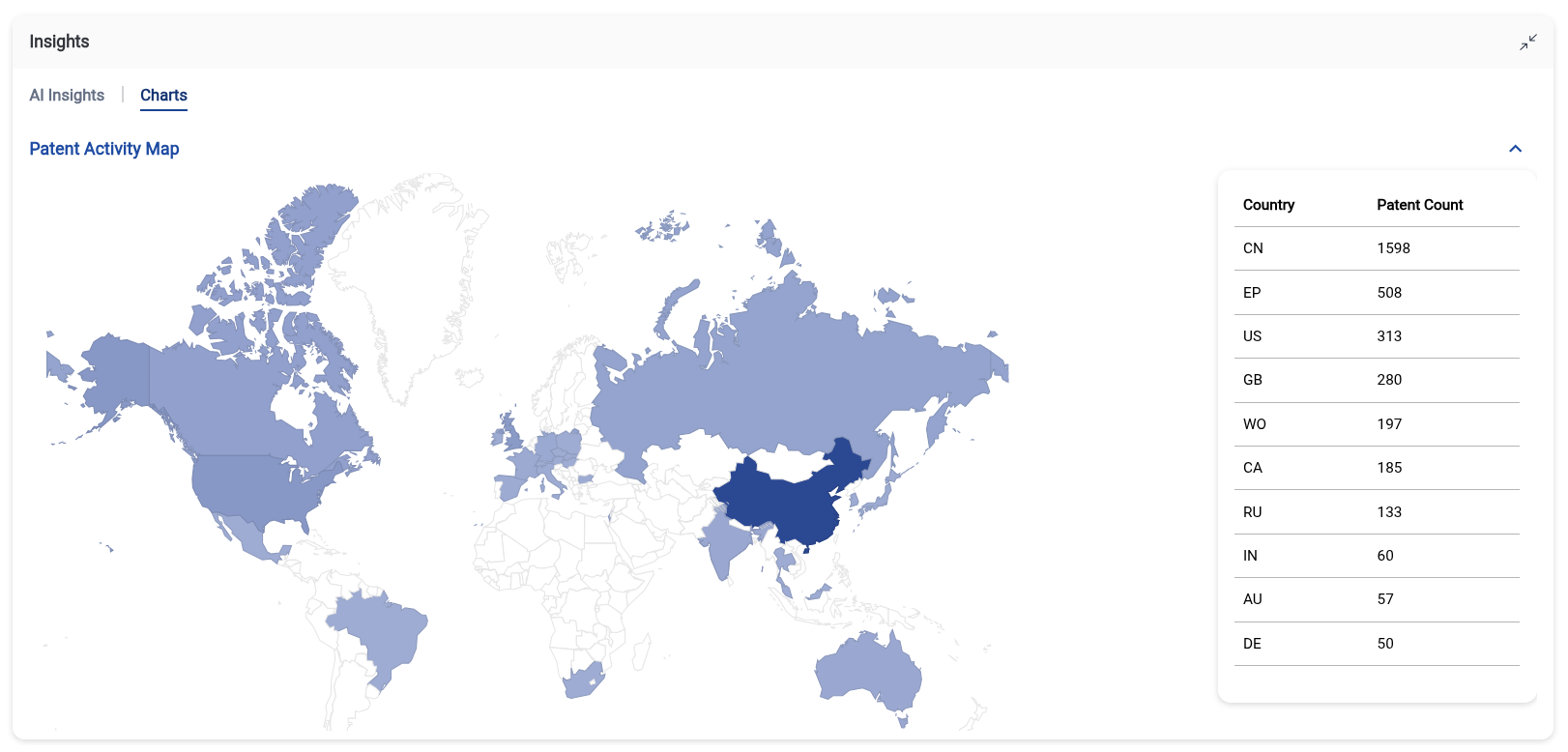
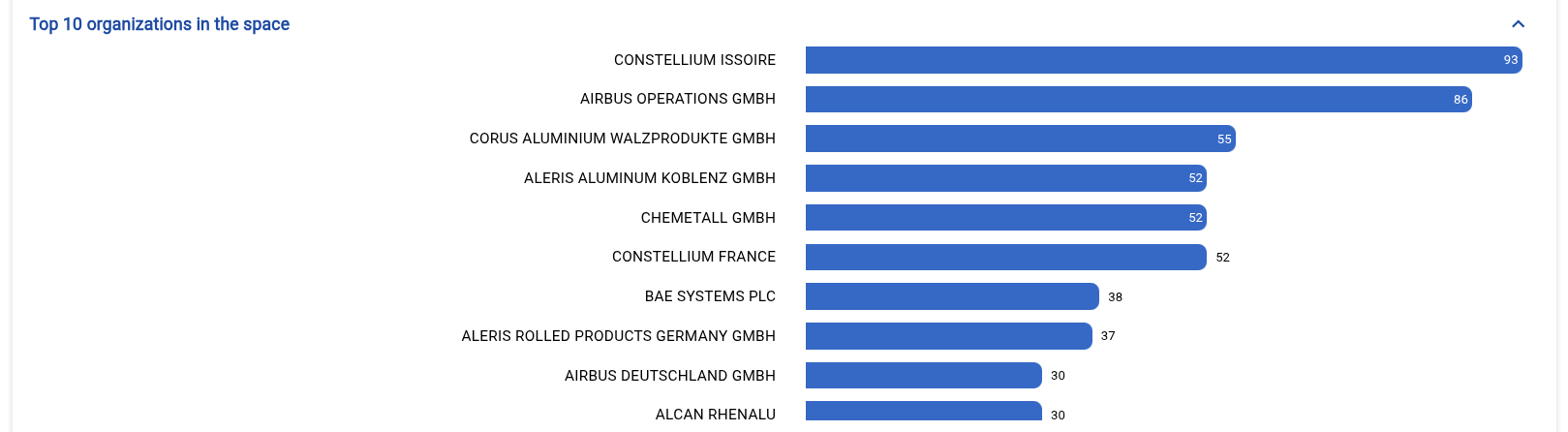
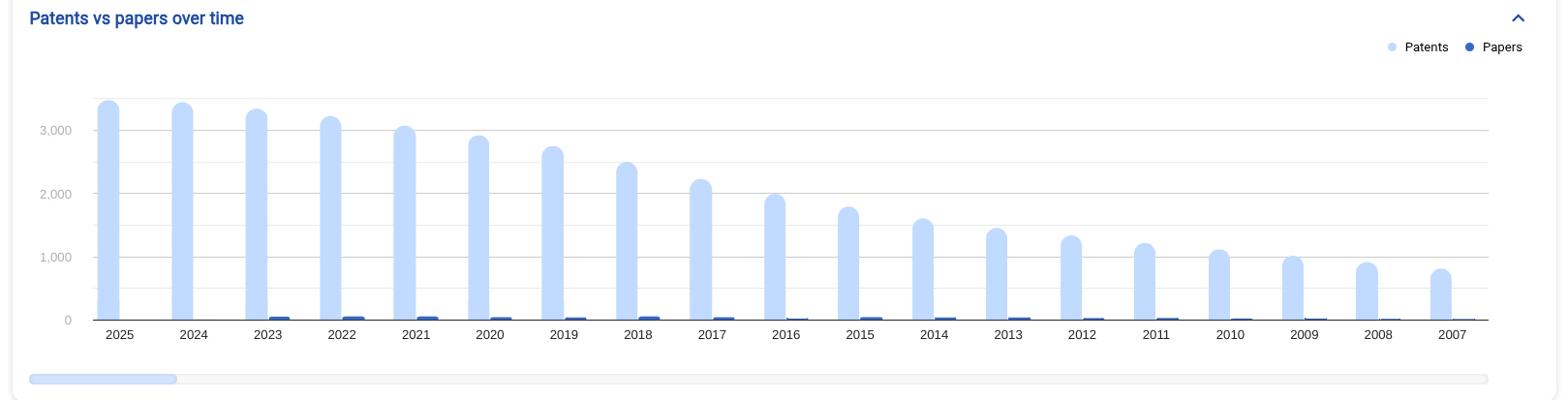
To scroll through time, click and drag the sidebar underneath the graph.
You’re able to click on each dataset within the charts to focus on that specific region, organization, and time period.
We’re excited to introduce a new feature that allows users to purchase and unlock closed-access research papers directly within Cypris using pre-loaded credits. This eliminates the need to manage multiple paper storage systems or navigate complex purchase processes.
Why We Built This Feature
Most organizations don’t subscribe to every major publisher and instead rely on individual paper purchases. If you don’t have a corporate card, you often have to go through approval processes or resort to personal funds. Once purchased, the paper might get lost in a publisher’s library or buried in a shared drive, making it easy to lose track of—and sometimes repurchase—papers.
To address this, we’re testing a credit-based system that lets you unlock papers directly in Cypris. Cypris processes the transaction under your ownership using your credit balance. Once purchased, the paper is immediately uploaded to your Cypris library, the credits are deducted from your balance, and everything is kept in one central location.
User Needs Addressed
- Seamless Purchasing: Unlock closed-access papers without leaving Cypris.
- Credit Balance Management: Easily check your balance and add more as needed.
- Faster Access: See the paper in your dashboard within 15 minutes (we’ll work on reducing this time).
How It Works
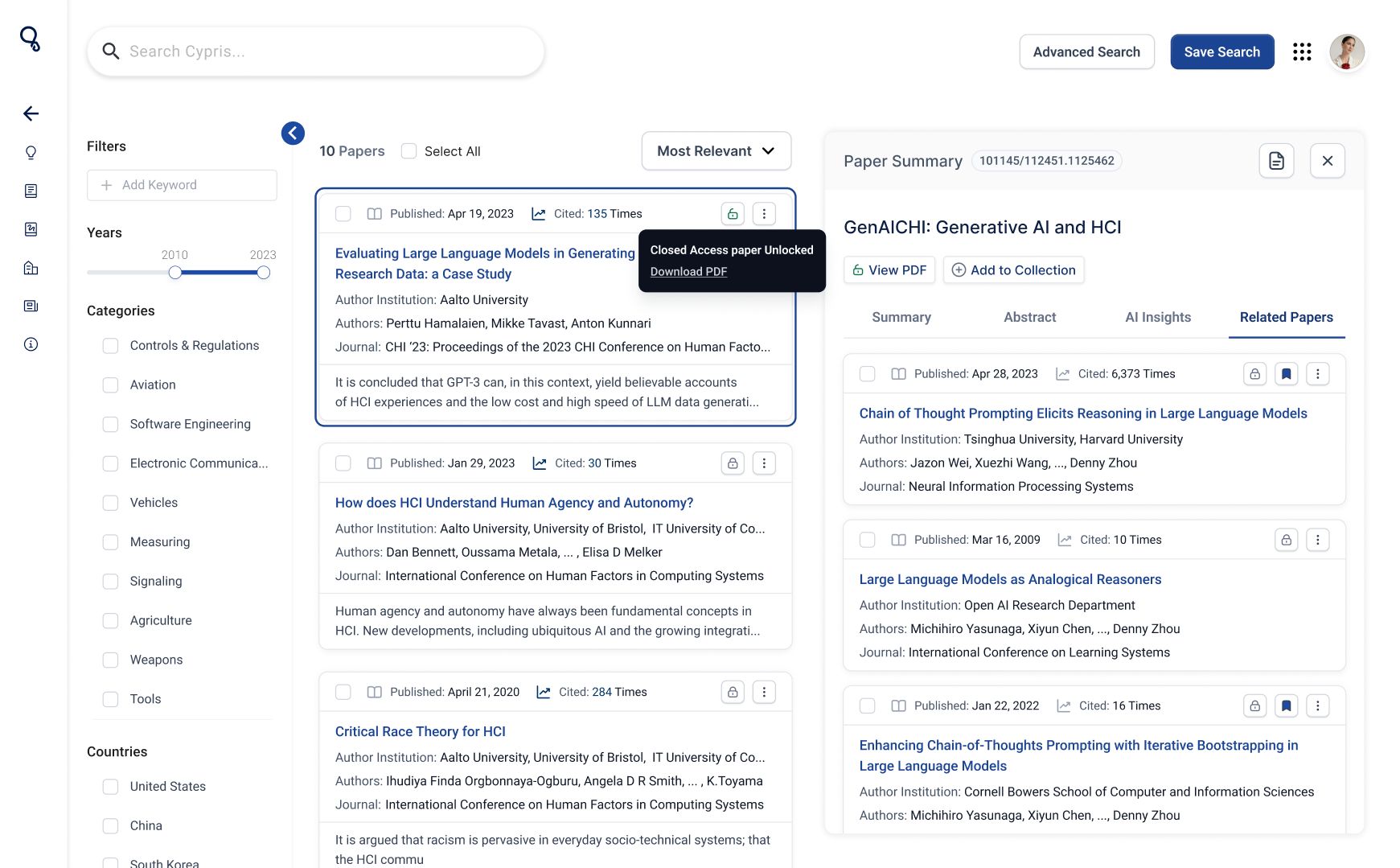
1. Find a locked paper – Closed-access papers are marked with a locked icon.
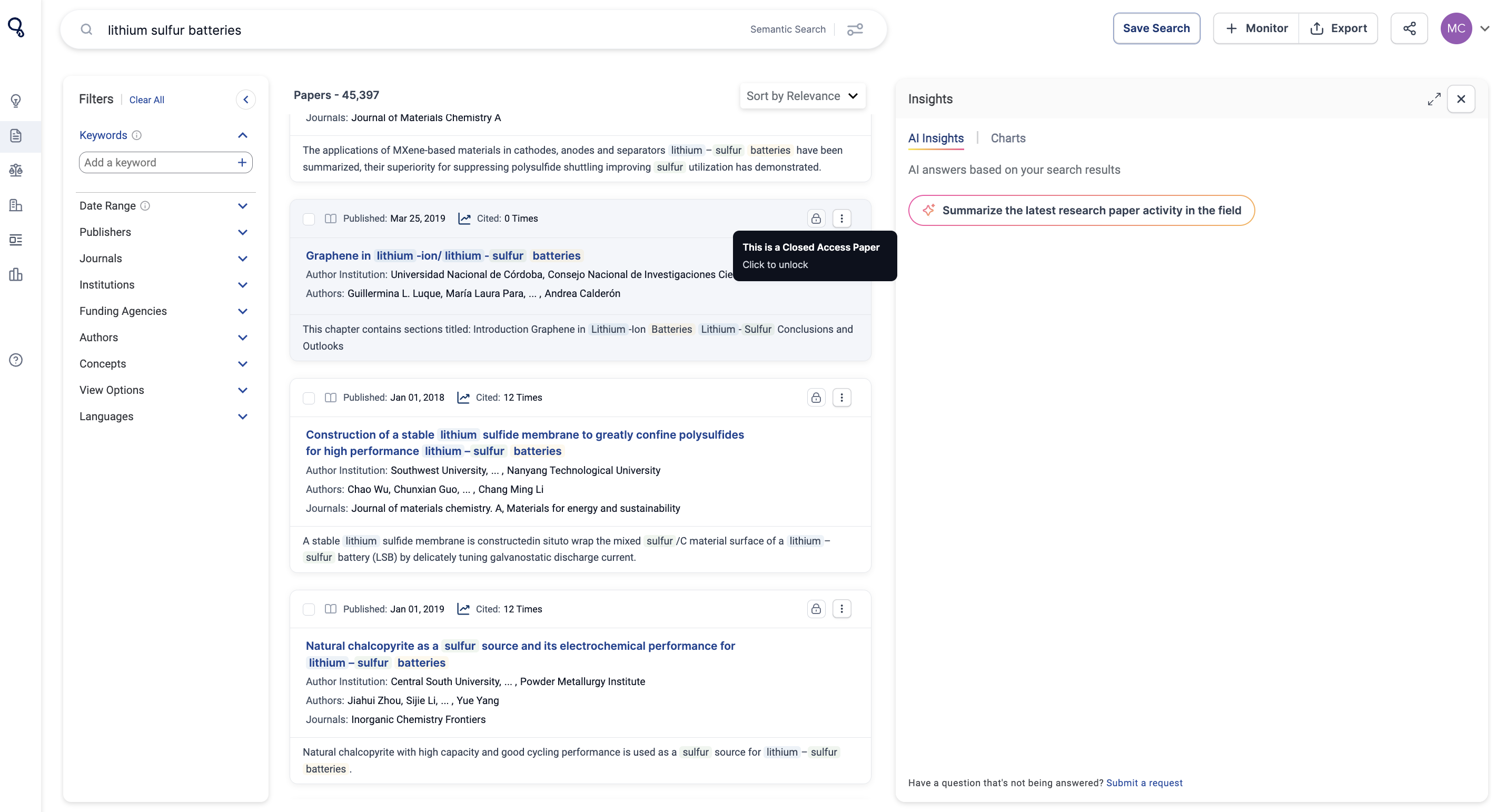
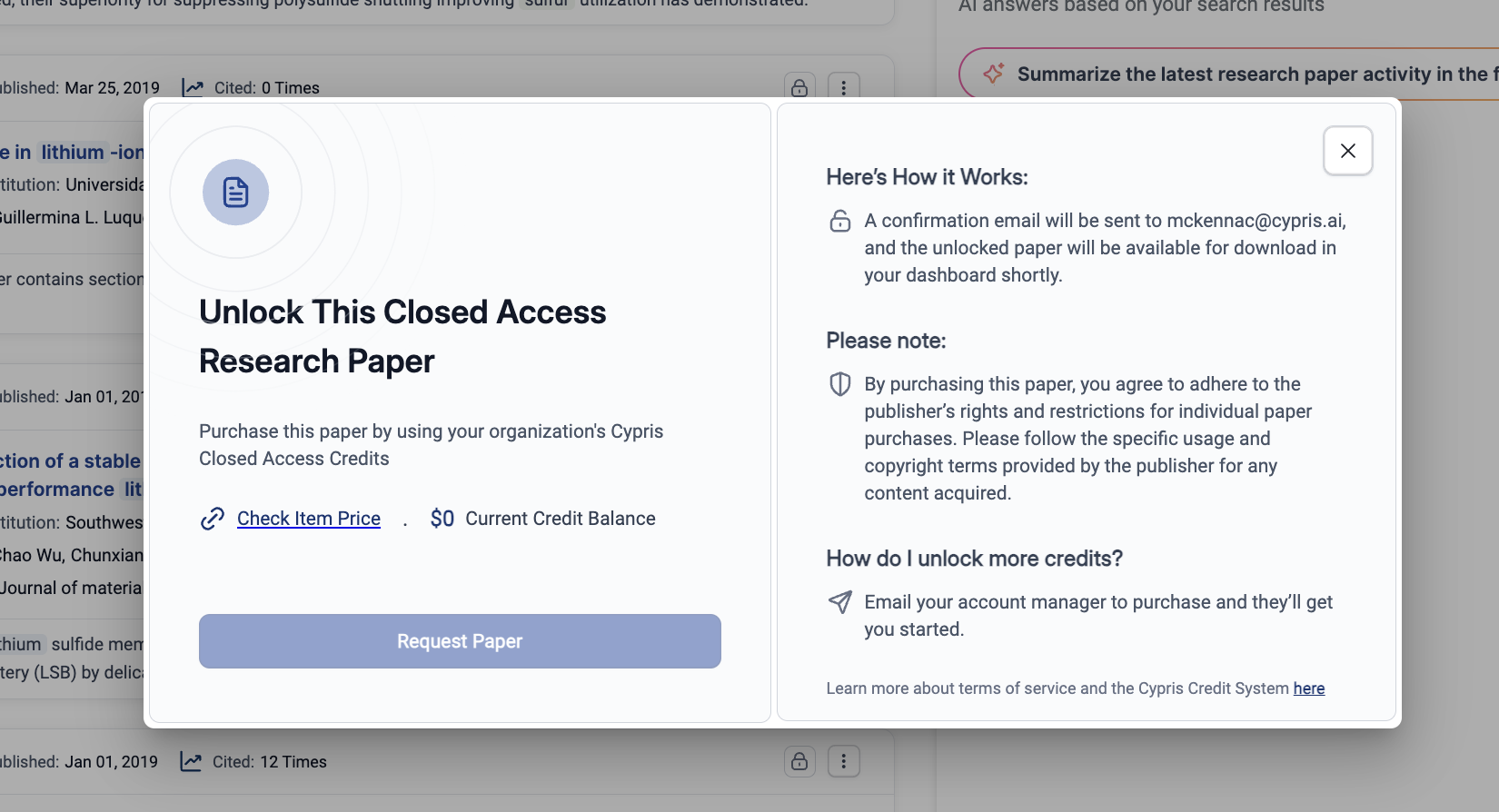
2. Check pricing & purchase – Click the icon to see the price, enter your email, and complete the purchase using your credit balance.
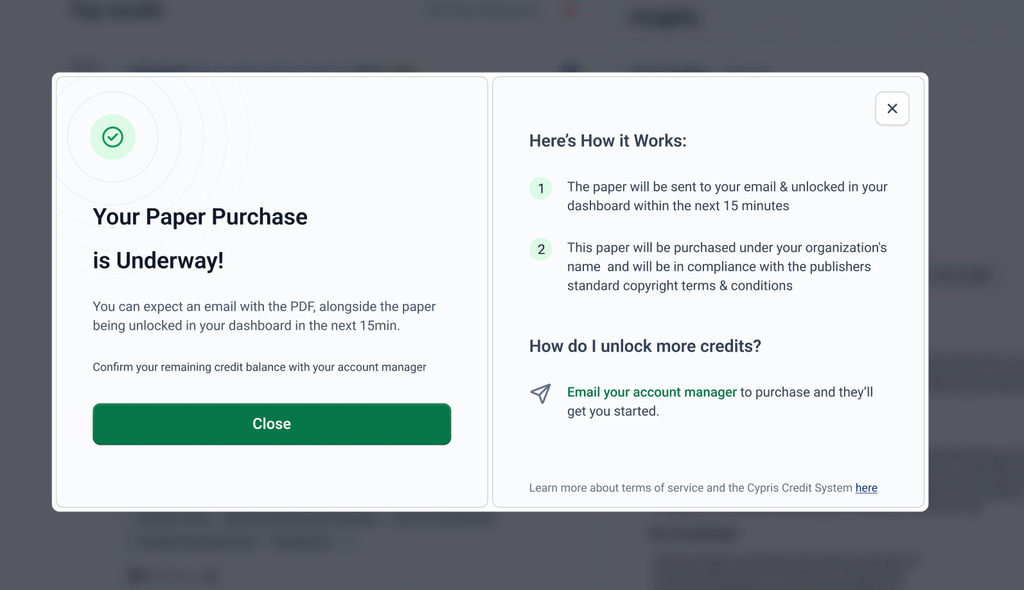
3. Track your order – Papers will show a ‘Pending’ status and unlock within 15 minutes (or the next morning for purchases after 6 PM EST).
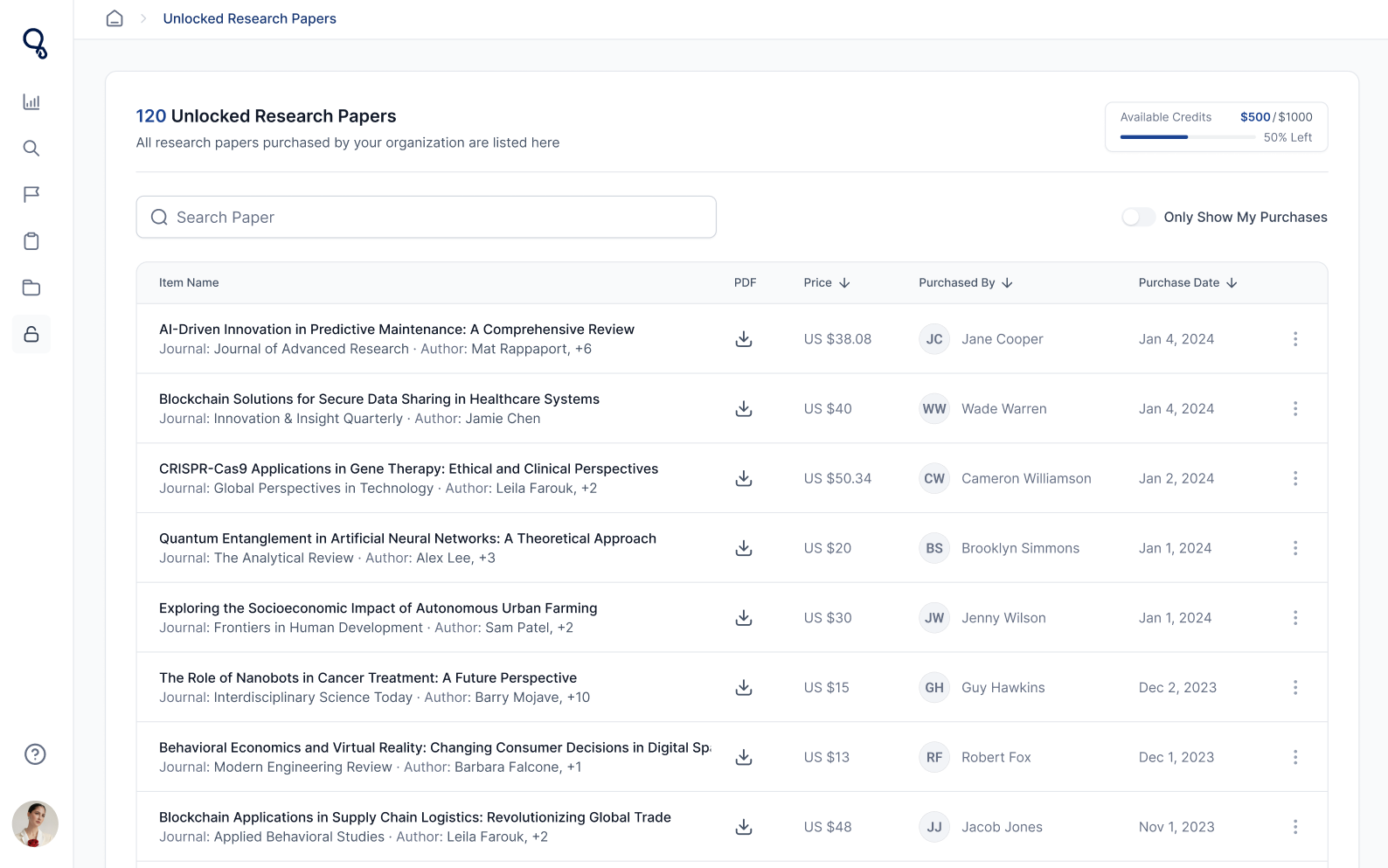
4. Access & download – Once unlocked, papers appear in the Unlocked Research Papers section, accessible through the left side panel, ready for download.
You can also navigate back to the paper and check for the green unlock button to confirm access.
Copyright Restrictions
Papers will be purchased in the user’s name individually and will be governed by the ‘individual paper purchase’ rights and restrictions issued by the publisher. Since we’re using our users' direct budget for purchases, Cypris is considered a payment and storage service provider for research (like Stripe and Google Drive).
We’re actively having conversations with publishers on terms for one day being able to have the copyright allowances to let users share papers organization-wide and expand what we can do with the papers, like integrate our AI. We’ll keep users posted as conversations progress.
Welcome to our guide on AI Profiles (Organizations). This feature is designed to help users uncover valuable insights about their competitors, partners, or organizations working within a field of interest.
Why We Built This Feature
Background
Users come to Cypris to get a clear picture of the state of innovation in a particular field. Commonly, they begin their analysis by identifying which organizations are actively investing R&D time and resources in the space. They want to know (1) Who’s in this market?, (2) What are they working on?, and (3) Where are they going?
Today, that analysis is being pieced together manually from a wide array of raw data which takes a tremendous amount of time and can lead to missed critical insights.
Using generative AI and the Cypris database, this feature allows users to automatically generate profiles on organizations found within search results to answer those 3 critical questions.
User Needs Addressed
- Automatically generate profiles on organizations to uncover:
- Who they are.
- What they are working on.
- Predictions on where they are going.
- Profiles can be downloaded to pdf and shared with colleagues.
How AI Profiles (Organizations) Works
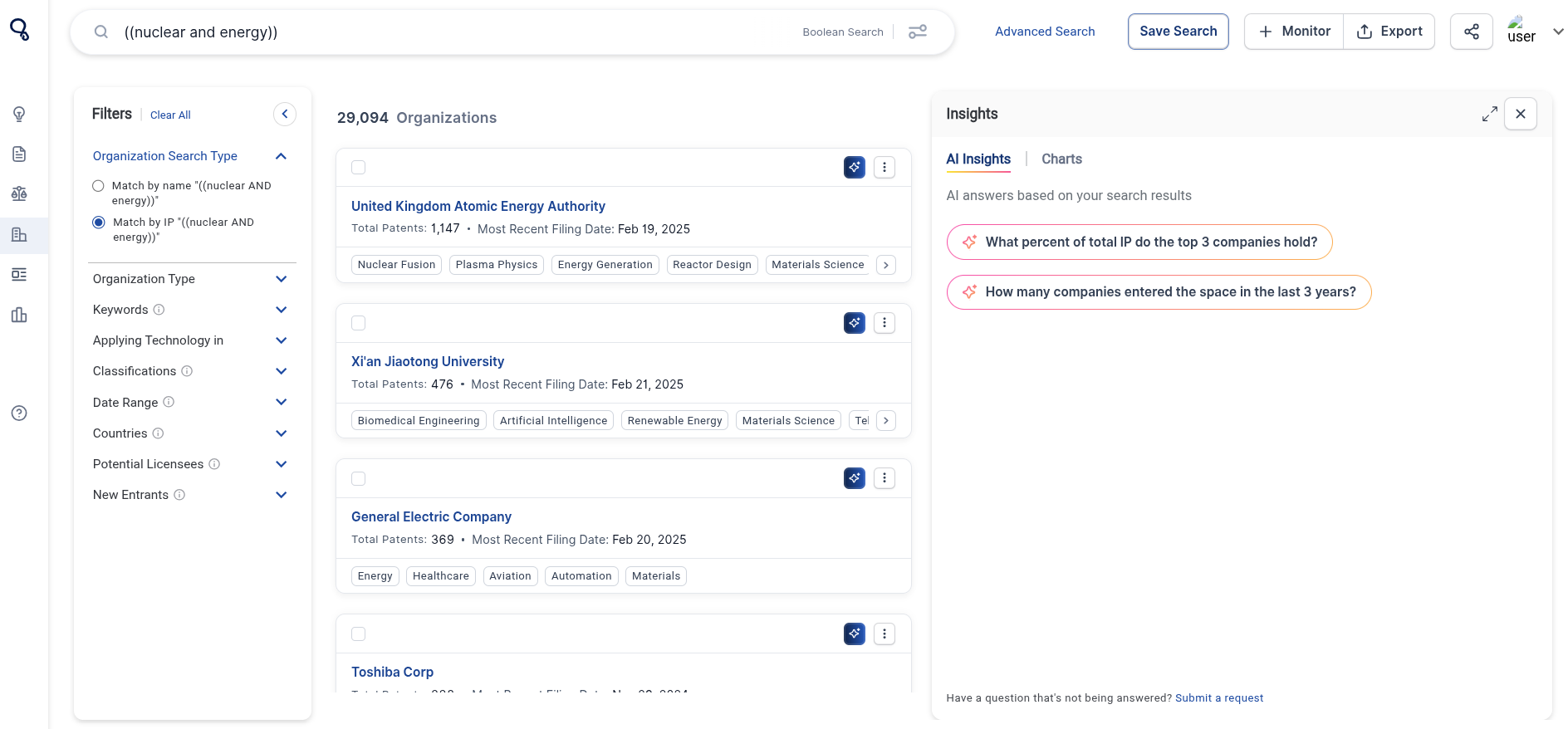
- Run any type of search (semantic, boolean, or organization).
- Navigate to the organization's tab and identify 1 or many that you’d like to analyze.
- Select ‘View AI Profile’ and wait 10-15 seconds (we’re working on making this faster).
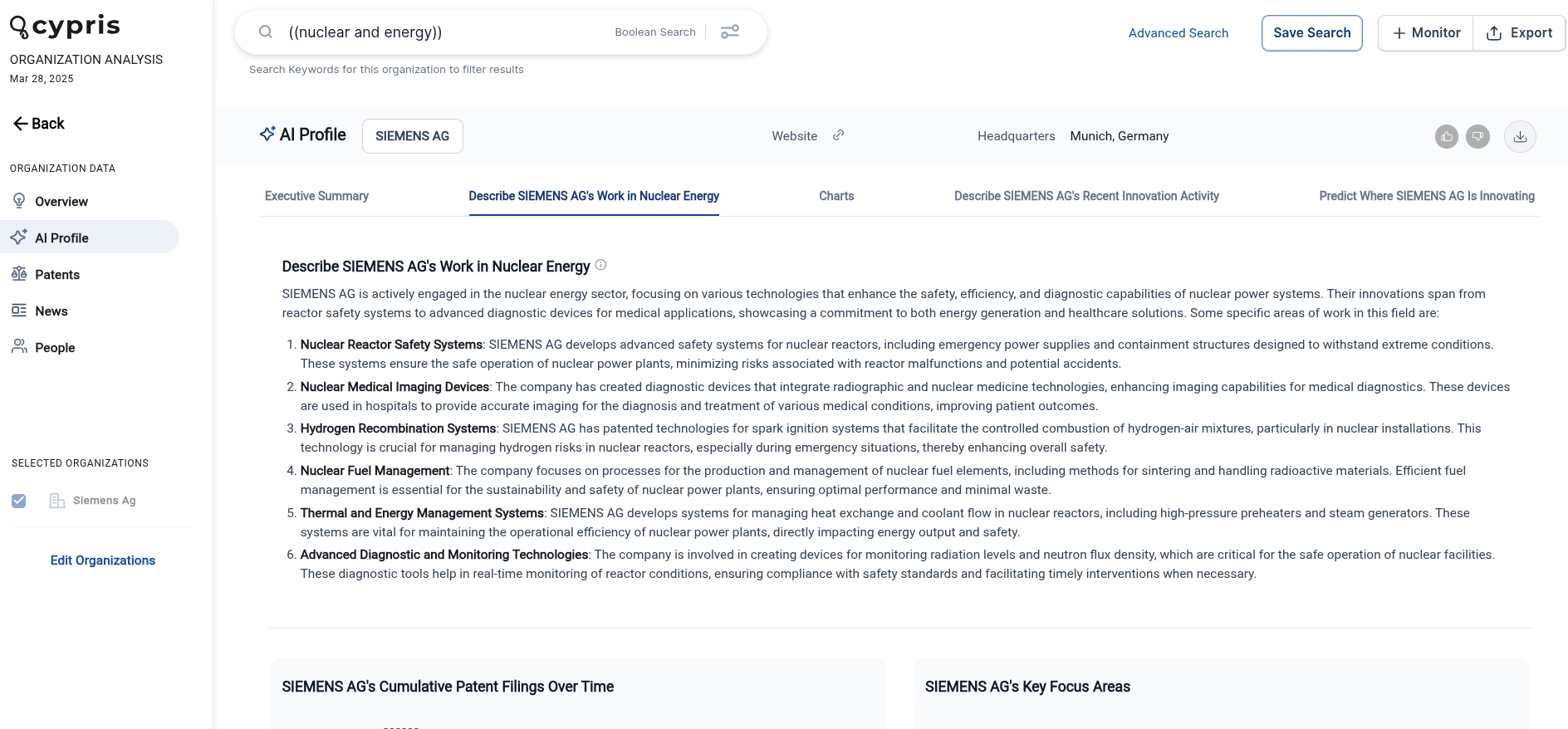
- You can view the profile in the side panel or click ‘View on Full Page’ to go to the main company page.
- Select the download icon to download the profile to a pdf.
How We Built This Feature
This feature is powered by ‘retrieval augmented generation’ or ‘RAG’.
Explained simply, RAG is an AI technique that focuses the answers you get from language models by combining external contextual knowledge with text generation. When you ask a question, a RAG model searches through a focused set of documents (or ‘context’) to find the most relevant information. It then uses this information to generate a response, effectively blending up-to-date data with its language skills. This means you get more accurate and context-aware answers, making the AI's responses more accurate and reliable.
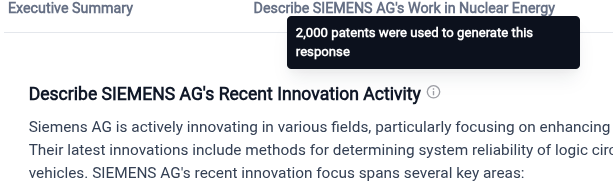
Cypris RAG Context for This Feature
For this feature, we’re primarily looking at the patent portfolio of the company being analyzed alongside some external data retrieved on the entity from our data partner Crunchbase.
When analyzing just the meta-data (title & abstracts) we currently can look at 600-700 patents.
When analyzing the full text we can include around 50-60 patents.
For different prompts, we look at different amounts of context. For example, when a keyword search is done on a company page, we only look at patents that include that keyword to generate the second prompt ‘Describe {Organization’s} work in {user query]’.
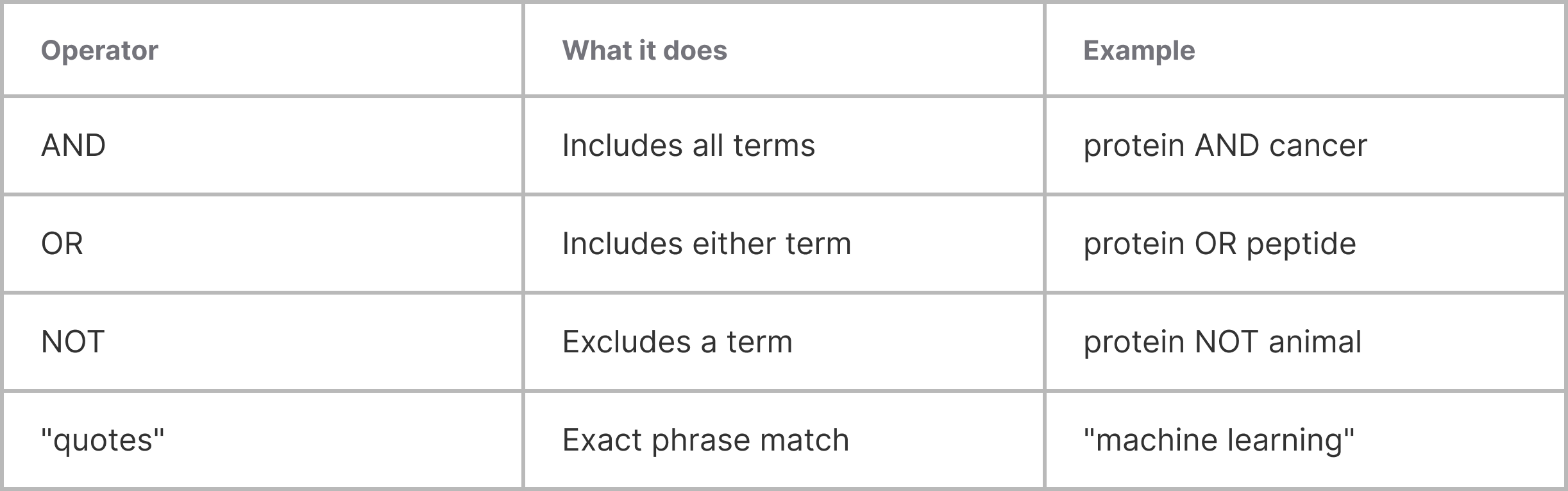
Boolean search logic lets you combine keywords with simple operators—AND, OR, and NOT—to quickly narrow or expand your search results. With a few tricks, you can search like a pro and find exactly what you need in Cypris.
What Is Boolean Logic?
Boolean logic is a way to tell our search engine exactly what you’re looking for by combining words and phrases with special operators. Think of it as giving Cypris step-by-step instructions for filtering results.
The Key Operators
1. AND
Use AND to require that all terms must appear in your results.
Example: battery AND recycling
Finds results that mention both “battery” and “recycling” together.
2. OR
Use OR to include results with any of your listed terms.
Example: battery OR capacitor
Finds results that mention either “battery” or “capacitor” (or both).
3. NOT
Use NOT to exclude certain terms.
Example: battery NOT lithium
Finds results that mention “battery” but filter out anything about “lithium.”
Advanced Tips
Use Quotation Marks for Exact Phrases
Put quotes around phrases to search for those exact words, in that exact order.
Example: "solid state battery"
Finds results where those three words appear together.
Combine Operators for Precision
Mix and match operators for targeted results.
Example: (battery OR capacitor) AND recycling NOT lithium
Finds results mentioning either “battery” or “capacitor” that also mention “recycling,” but removes any that mention “lithium.”
Parentheses for Complex Searches
Group terms and control the order of logic with parentheses.
Example: (solar OR wind) AND (storage OR battery)
Finds results about either “solar” or “wind,” combined with “storage” or “battery.”
Quick Reference
Want More Advanced Search?
For even more advanced and customizable search options, try the Cypris Query Builder—just click the button at the far right of the search bar. The Query Builder lets you build complex searches with a user-friendly interface, no Boolean knowledge required.
Learn more about using the Query Builder here: https://www.cypris.ai/help-center/articles/introducing-advanced-search-on-cypris
Need More Help?
If you’re ever stuck or want help crafting a complex search, reach out to our support team or use the help chat in the corner—we’re here to help you get the most out of Cypris.
.avif)