

How we can help?
Popular Articles
How to Explore Patents
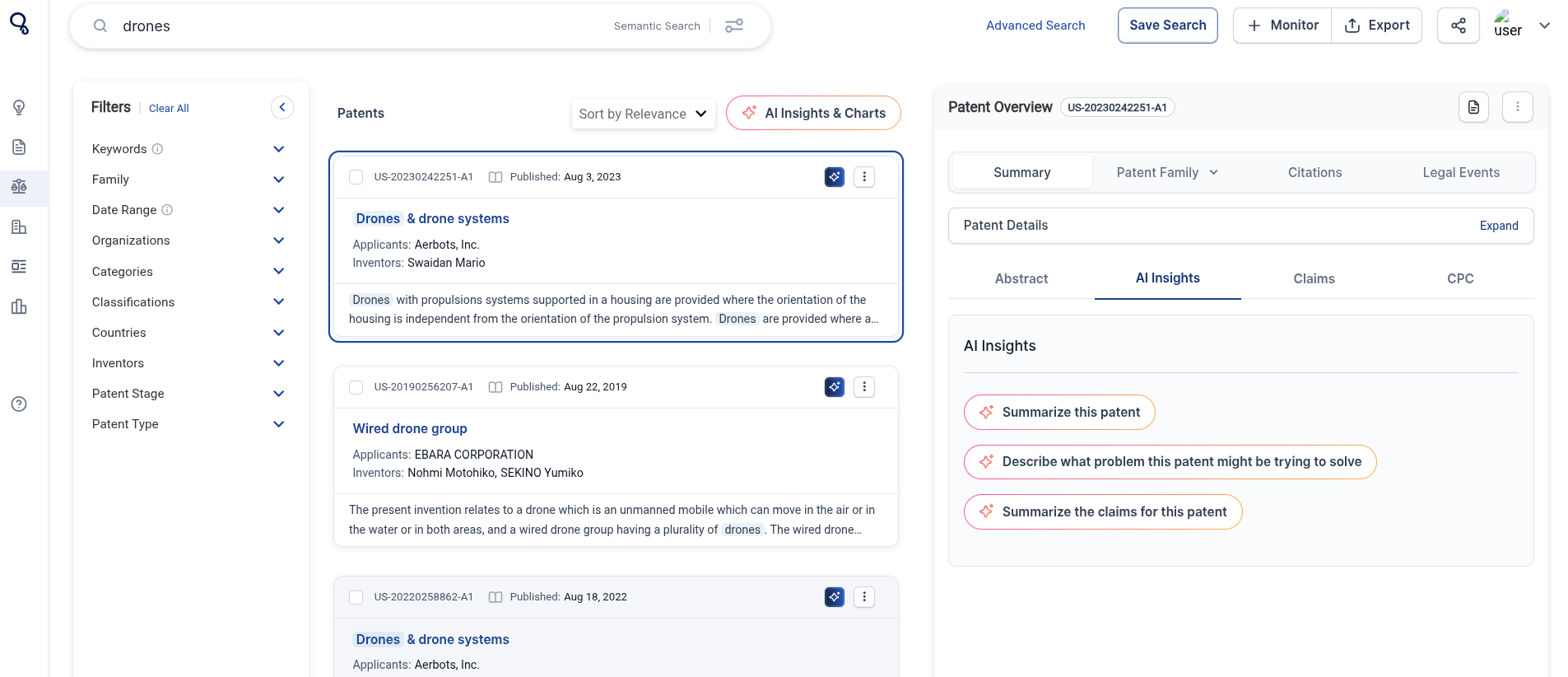
Click on “Patents” on the sidebar to view all patents relating to your search.
On the left sidebar, you can filter the search results by Keywords, Family, Date Range, Organizations, Categories, Classifications, Countries, Inventors, Patent Stage and Patent Type. You can sort by Relevance and Date by clicking “Sort by Relevance”.
You can view AI insights for each patent by clicking on the patent and then on “AI Insights” located on the right.
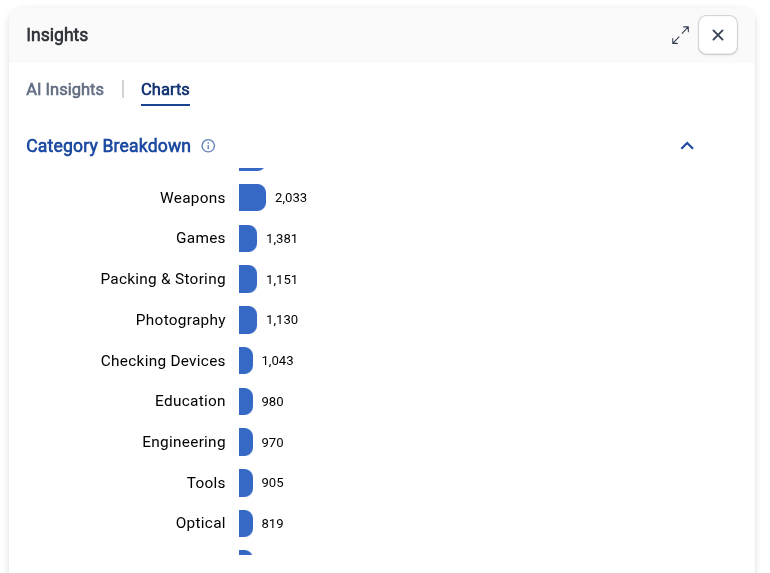
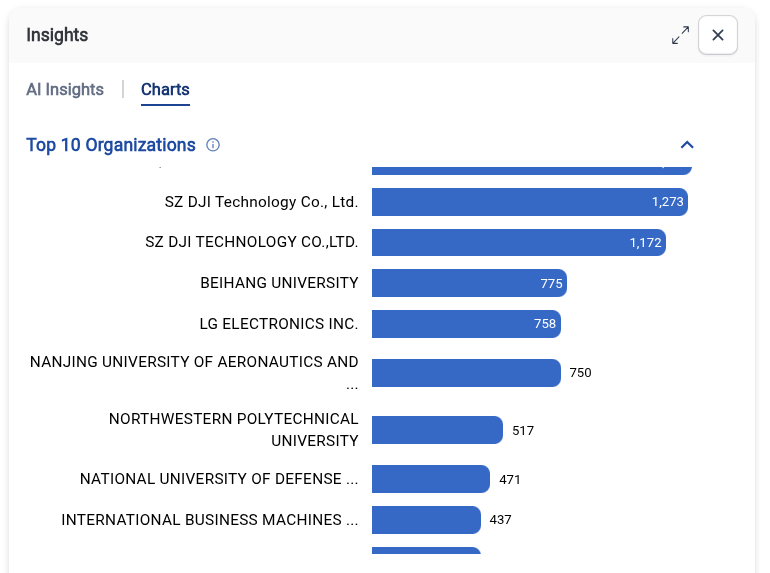
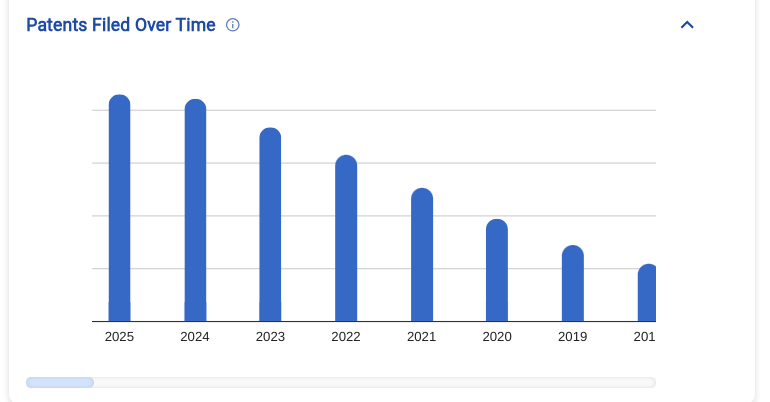
By selecting “Charts” you can see a patent Category Breakdown, Top 10 Organizations and Patents Filed Over Time.
Building AI Reports for Patents
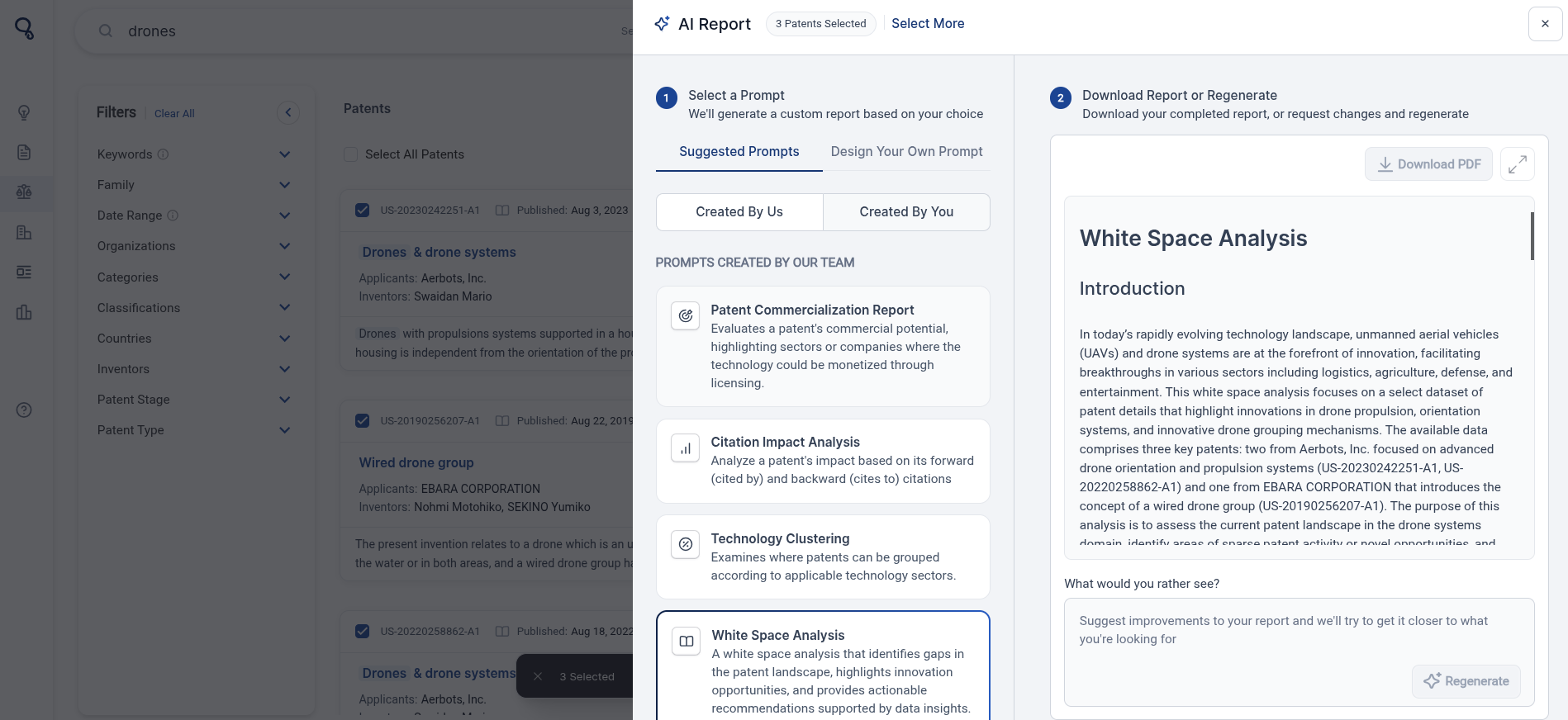
You can also build an AI Report on selected patents. Once the relevant patents are selected, click the 'Build AI Report' button at the bottom of the page and use either our pre-loaded prompts, or create your own, to build a customizable AI Report which can be downloaded to pdf.
For a guide to building AI Reports for Patents, view this article here.
Semantic search goes beyond matching exact keywords—it helps you find results based on meaning and context, not just specific words. With semantic search, you can ask questions naturally and Cypris will surface the most relevant patents, papers, and insights, even if they use different wording.
What Is Semantic Search?
Traditional keyword search looks for exact matches. Semantic search understands the intent and context of your query. This means you can:
- Search using questions, full sentences, or natural language.
- Discover related results, even if they use different terminology.
- Uncover hidden insights that might be missed with keyword search alone.
Examples:
Natural language:
“What are the latest innovations in battery recycling?”
Cypris will show research and patents relevant to that topic—even if they don’t use those exact words.
Broader coverage:
Searching for “biodegradable plastics” may also find results mentioning “compostable polymers,” “eco-friendly packaging,” or “sustainable materials.”
When to Use Semantic Search
- When you want to cast a wide net and discover related concepts.
- When you’re unsure of the exact terminology used in the field.
- When your search is complex or exploratory.
Tips for Getting the Best Results
- Use clear, specific questions or descriptions:
The more context you provide, the better the results. - Try both semantic and keyword search:
For highly technical or niche topics, consider running both search types to ensure comprehensive coverage. - Refine your query:
If results are too broad or off-topic, add more details to your query.
Want More Advanced Search?
For even more control and customization, use the Cypris Query Builder—located at the far right side of the search bar. The Query Builder lets you combine filters, Boolean logic, and advanced options in a user-friendly interface.
Learn more about using the Query Builder here: https://www.cypris.ai/help-center/articles/introducing-advanced-search-on-cypris
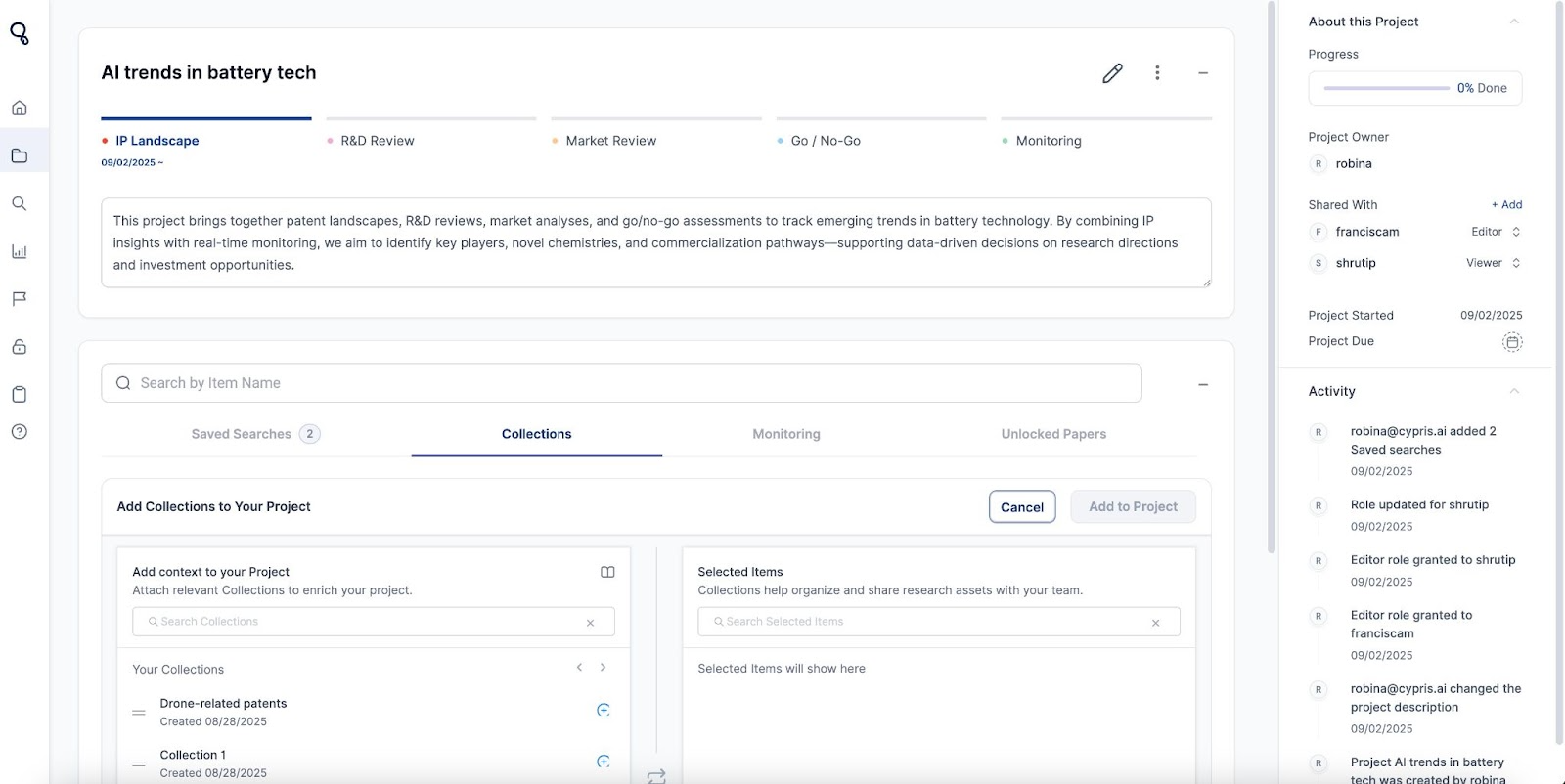
We’re excited to announce a major update to Projects—a feature you may already know, now reimagined as a smarter, more collaborative workspace for R&D teams.
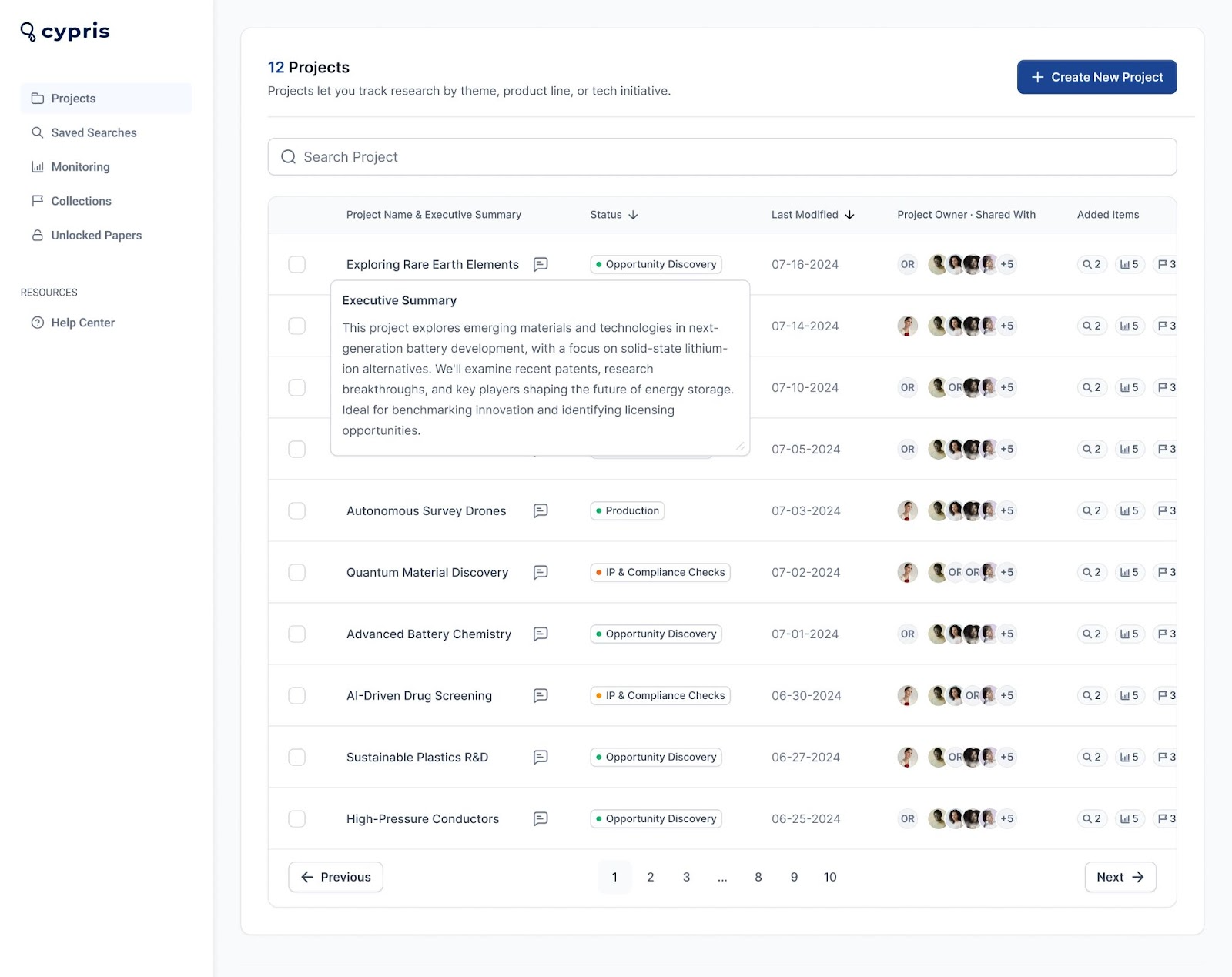
The new Projects experience lets you group saved searches, collections, monitoring reports, and more under one umbrella—while tracking progress, customizing workflows, and collaborating seamlessly, all without switching tools.
Here’s what’s new:
Shared Access, Instantly
Add content—like saved searches, monitoring reports, collections, and research papers—directly to projects. Everything you add is instantly visible to your collaborators, so the whole team stays aligned.
Custom Workflows & Progress Tracking
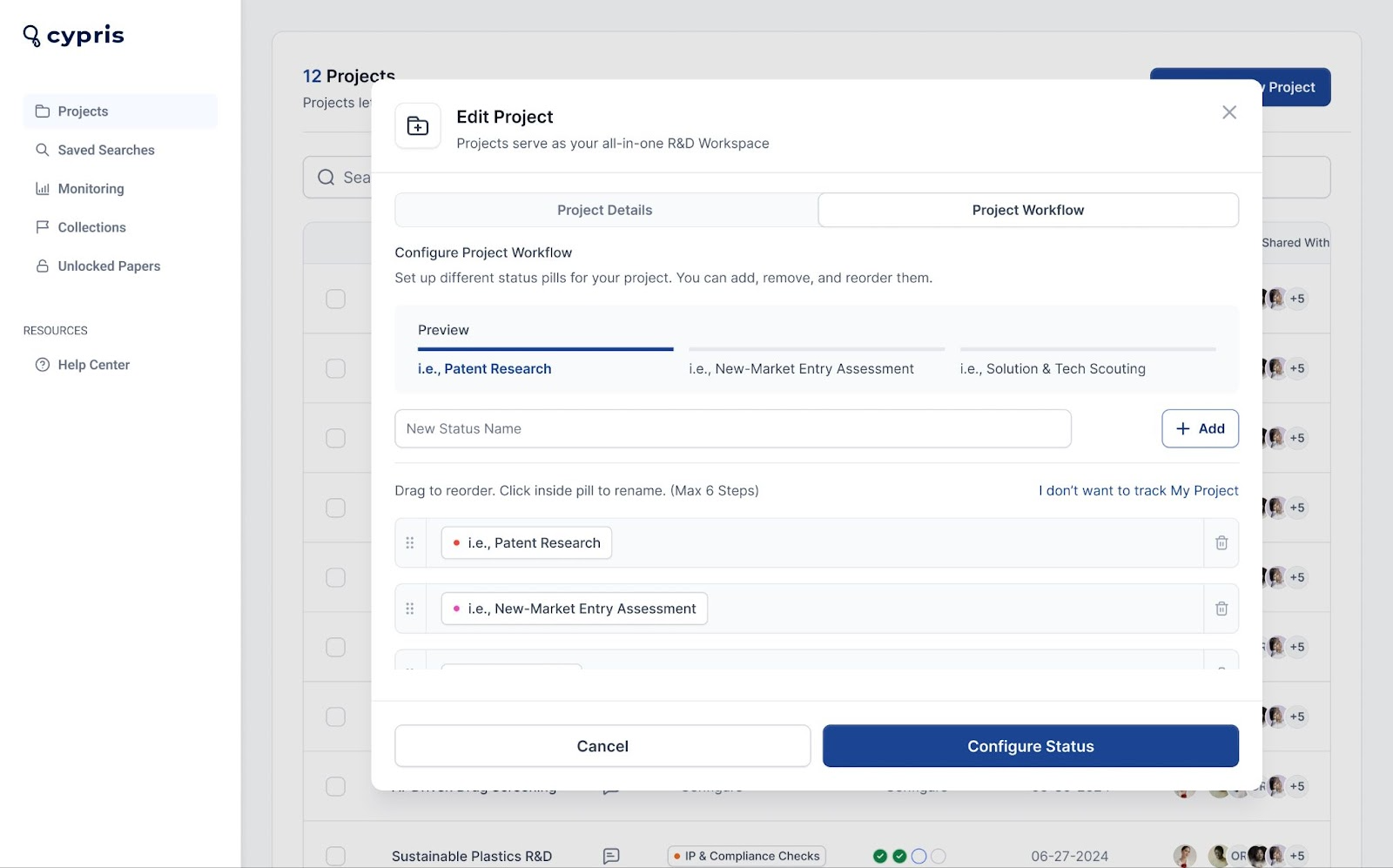
Define project stages using custom status labels and track progress. Whether your team is evaluating patents, prototyping, or analyzing markets, Projects adapts to your workflow.
Smarter Collaboration & Role Management
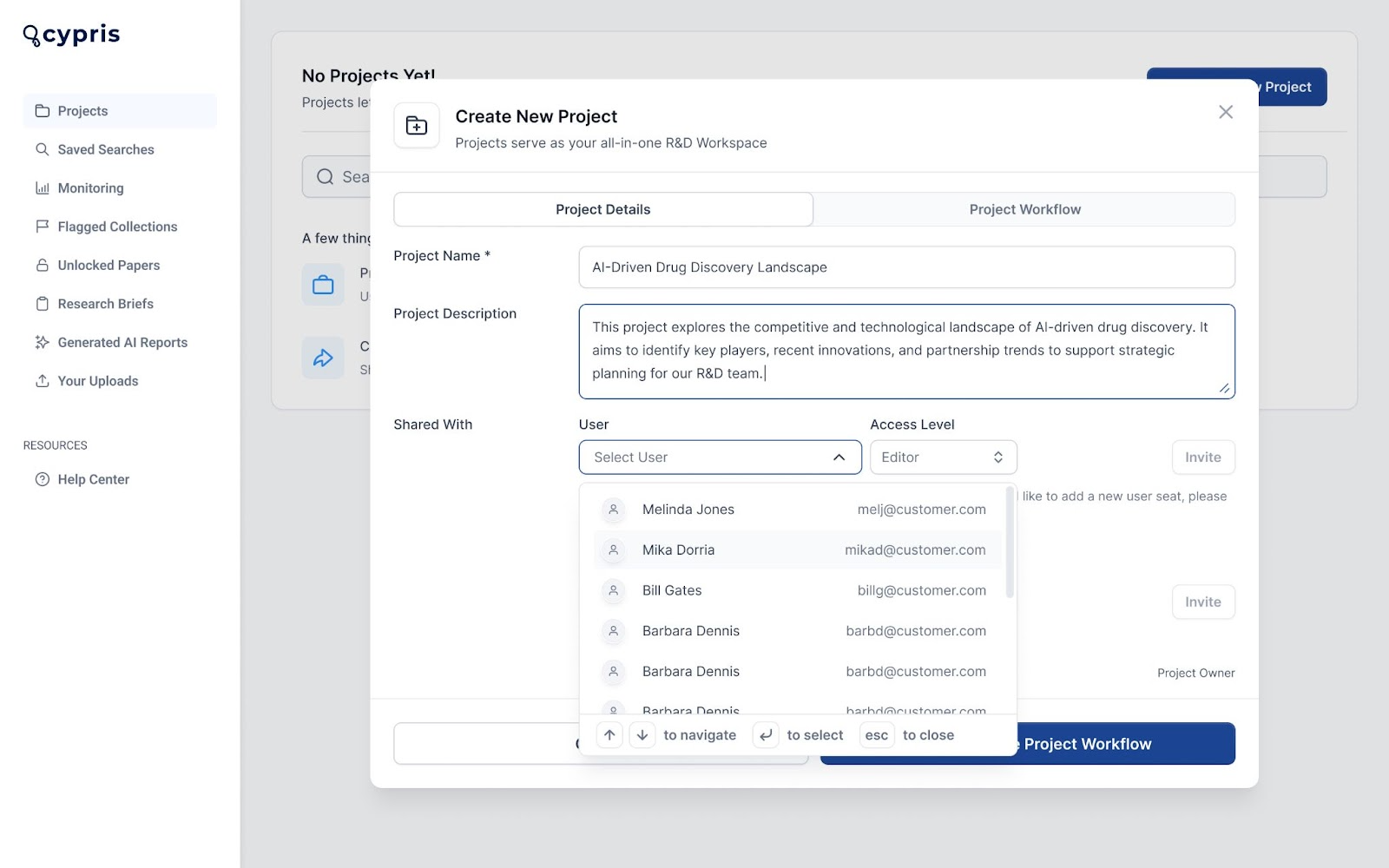
Assign owners, add contributors with view or edit access, and securely share projects across your organization with role-based permissions.
Future Enhancements Coming to Projects
Soon, you’ll be able to add internal files, and research briefs directly to your projects—making Cypris a true system of record for innovation. Looking ahead, Projects will integrate further with our AI, enabling secure Q&A on your materials, whitespace insights, and AI-powered prior art searches—all in a closed, enterprise-secure environment.
Have questions or want help getting started? Reach out to your Cypris team directly.
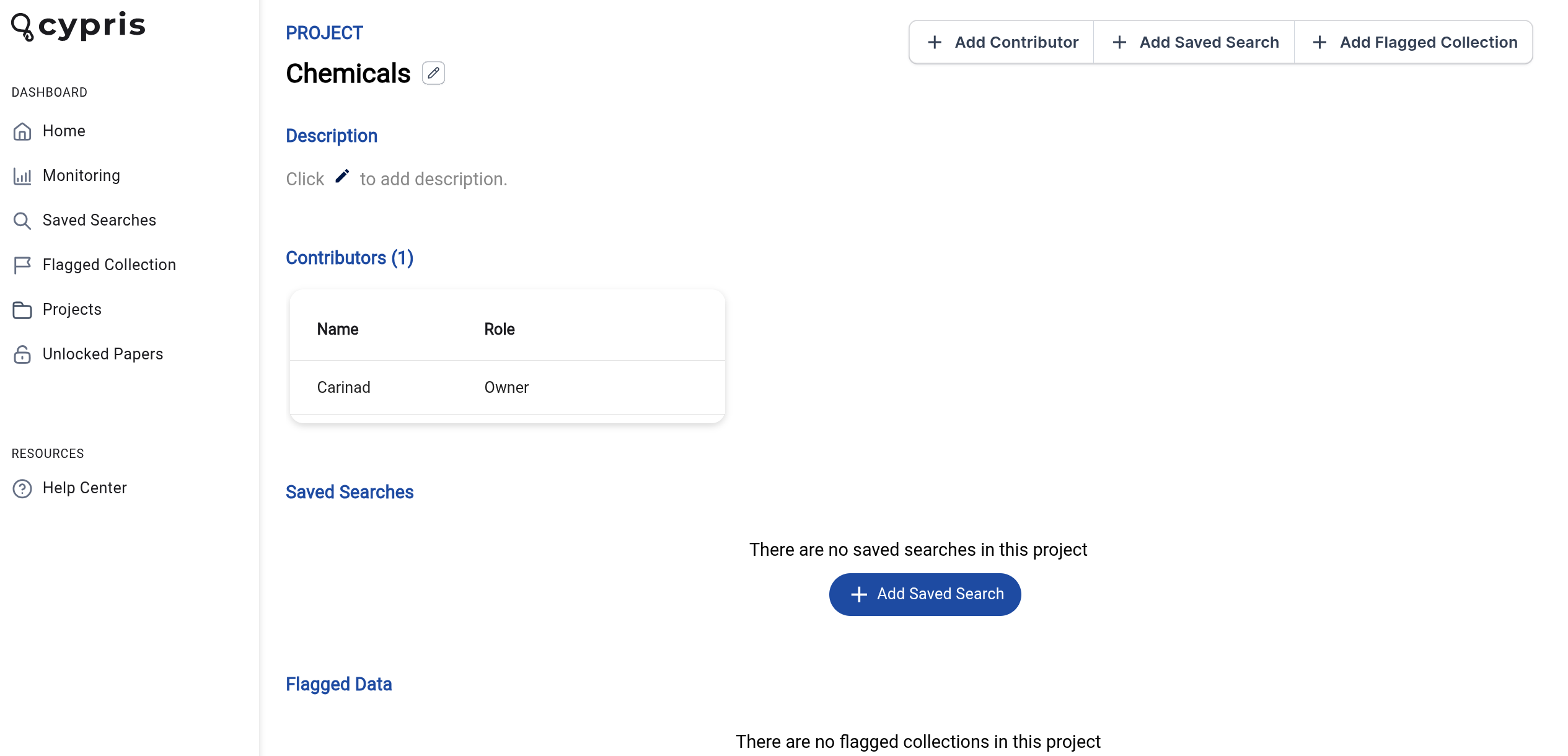
With projects, users can add saved searches into folders and share them with team members. Team members will be able to view and add to the folder as well.
You can manage your projects from the Innovation Dashboard, in the bottom section.
Under the Flagged Data sections, you can see your current Projects.
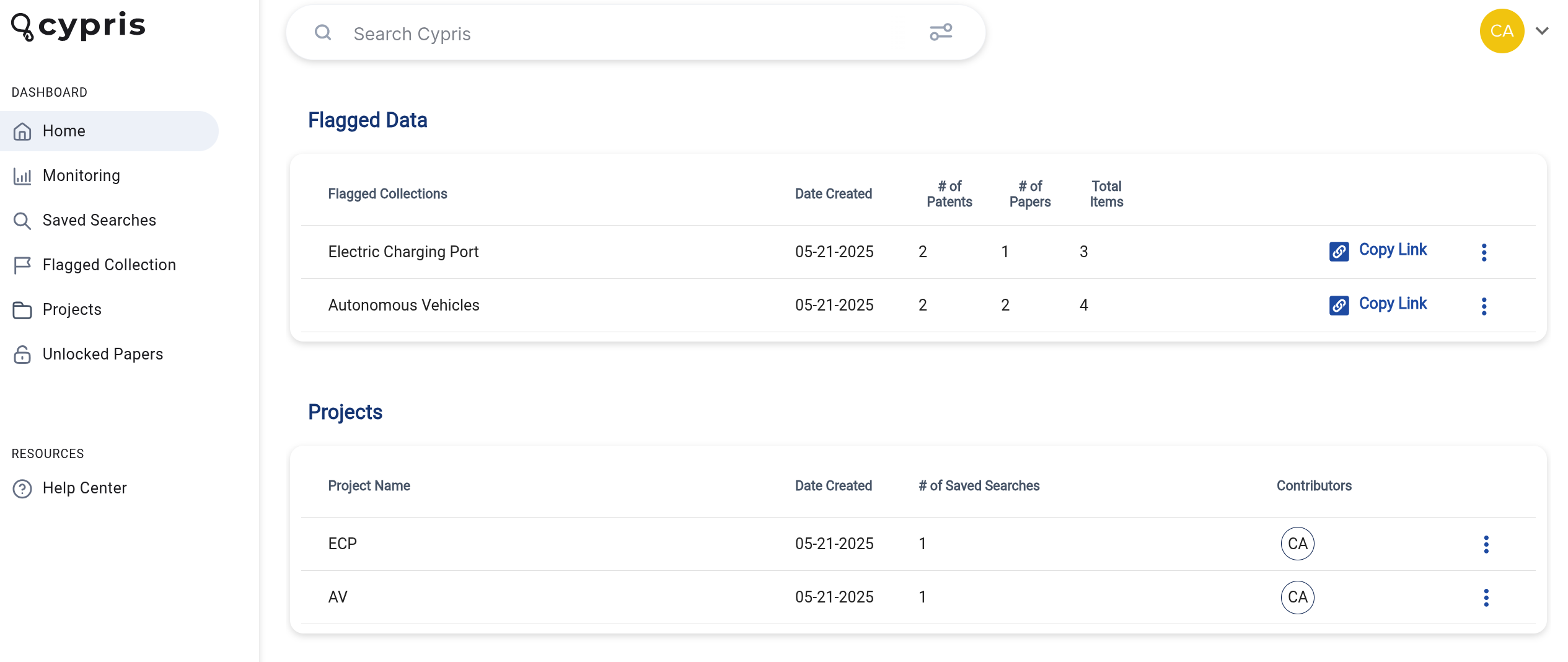
Select projects to view all current projects.
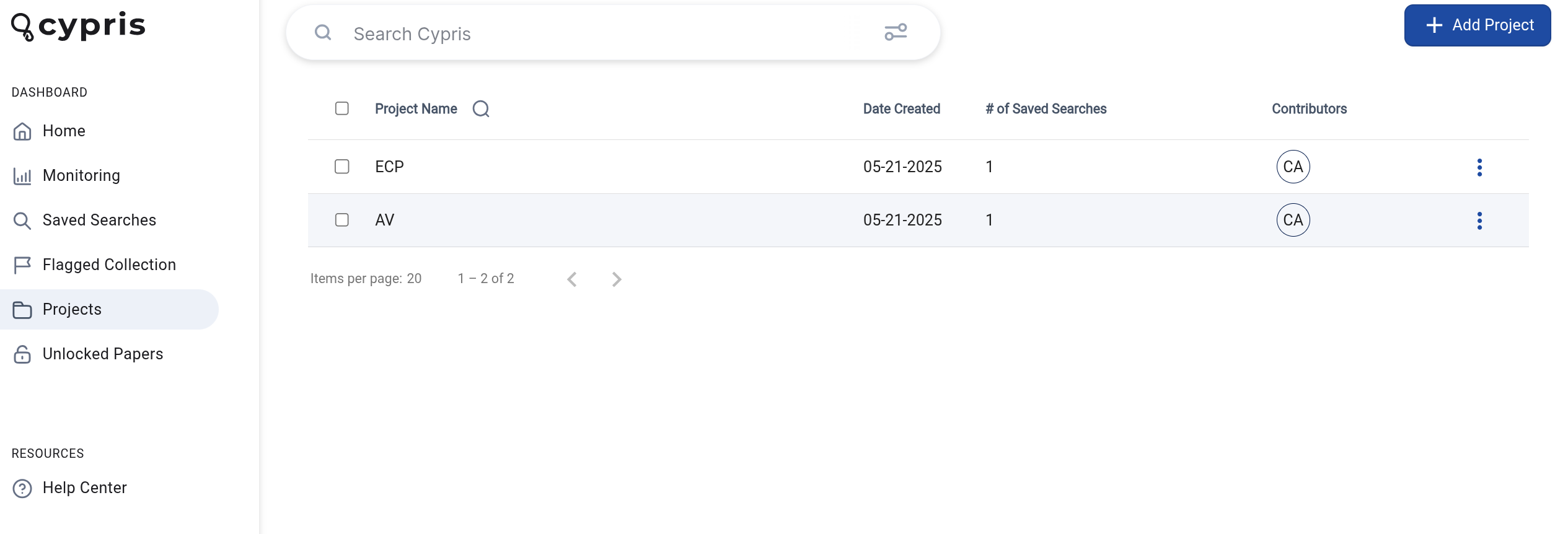
To create a new project, click the +add project button. In the pop-up window that appears, add your project name.
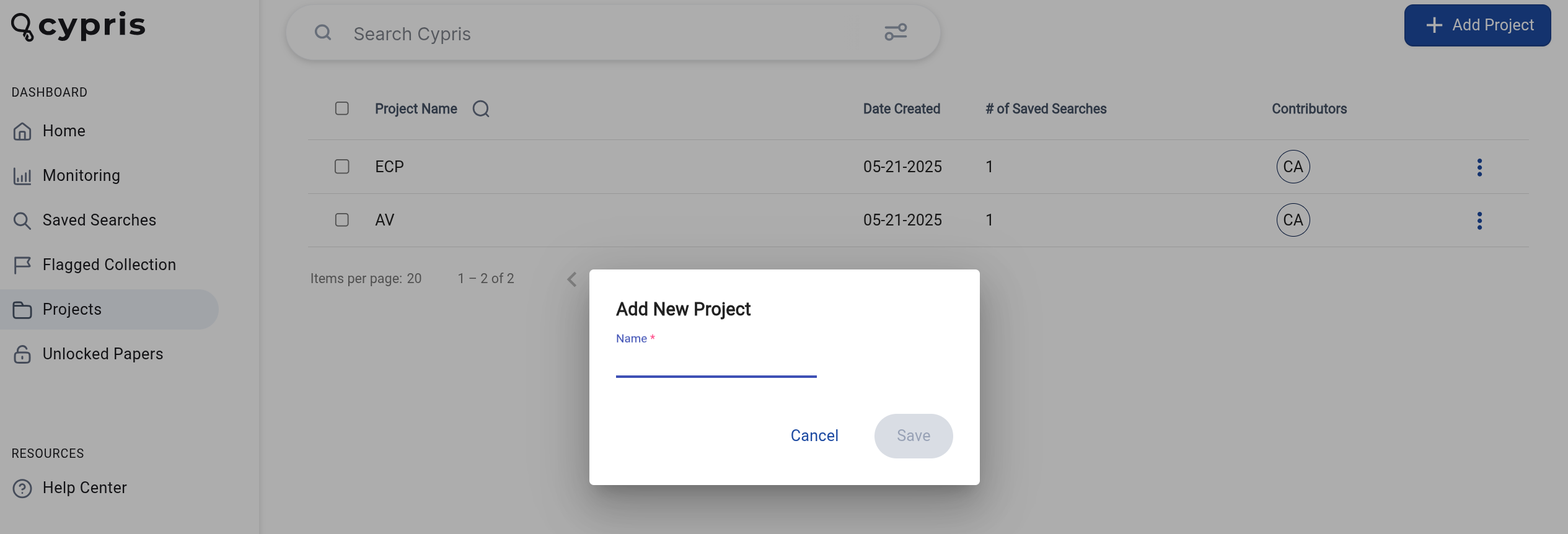
Click save after filling out the fields.
Adding Saved Searches to Projects
To add a saved search to the project, select + add saved search.
On the left side you’ll see saved searches you can choose to add to your selected project. On the right side, you’ll see current saved searches in the project. Click on any saved search to select it and use the arrows to move the saved search to the left or right.
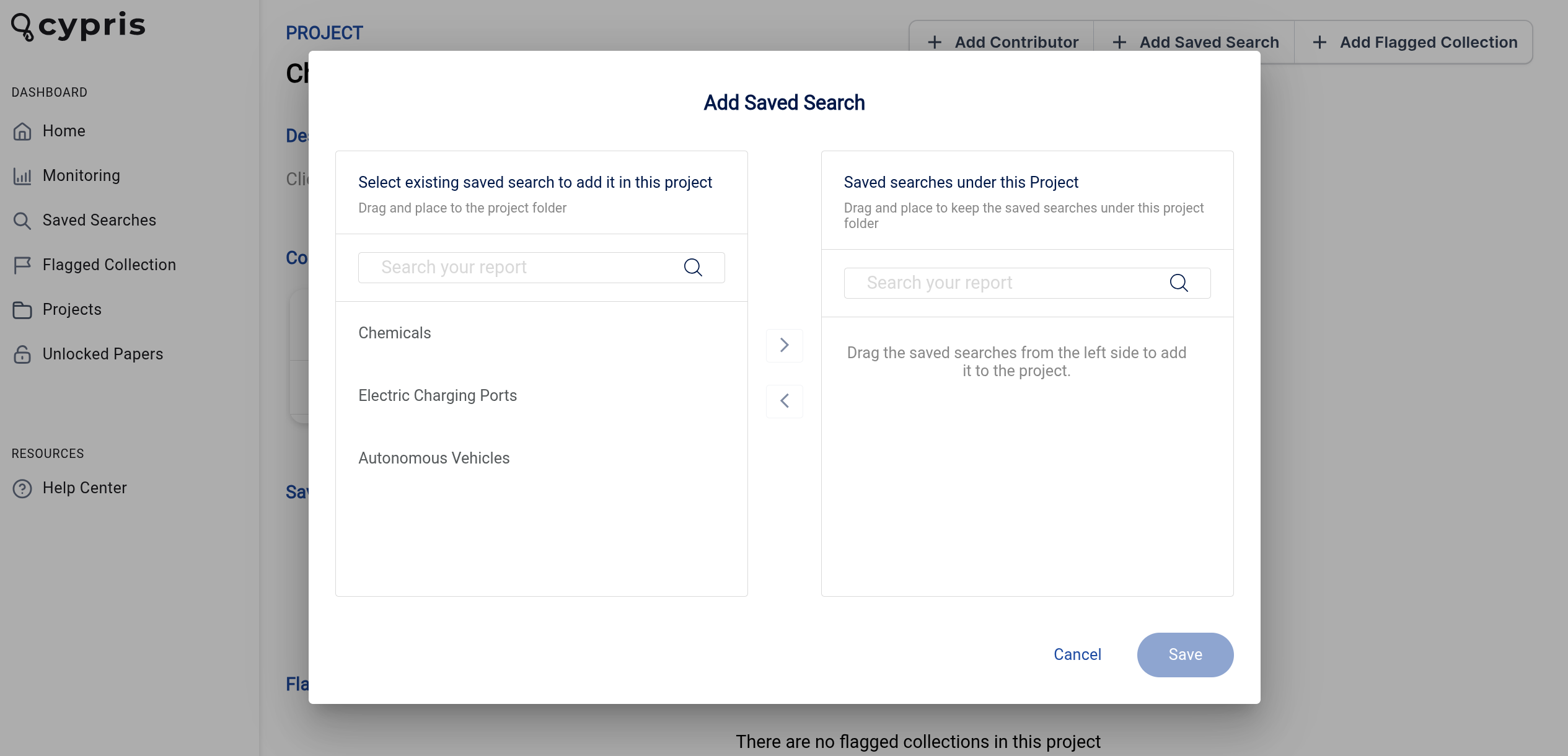
You can also use the search bar to search through searches more quickly.
Adding Flagged Data to Projects
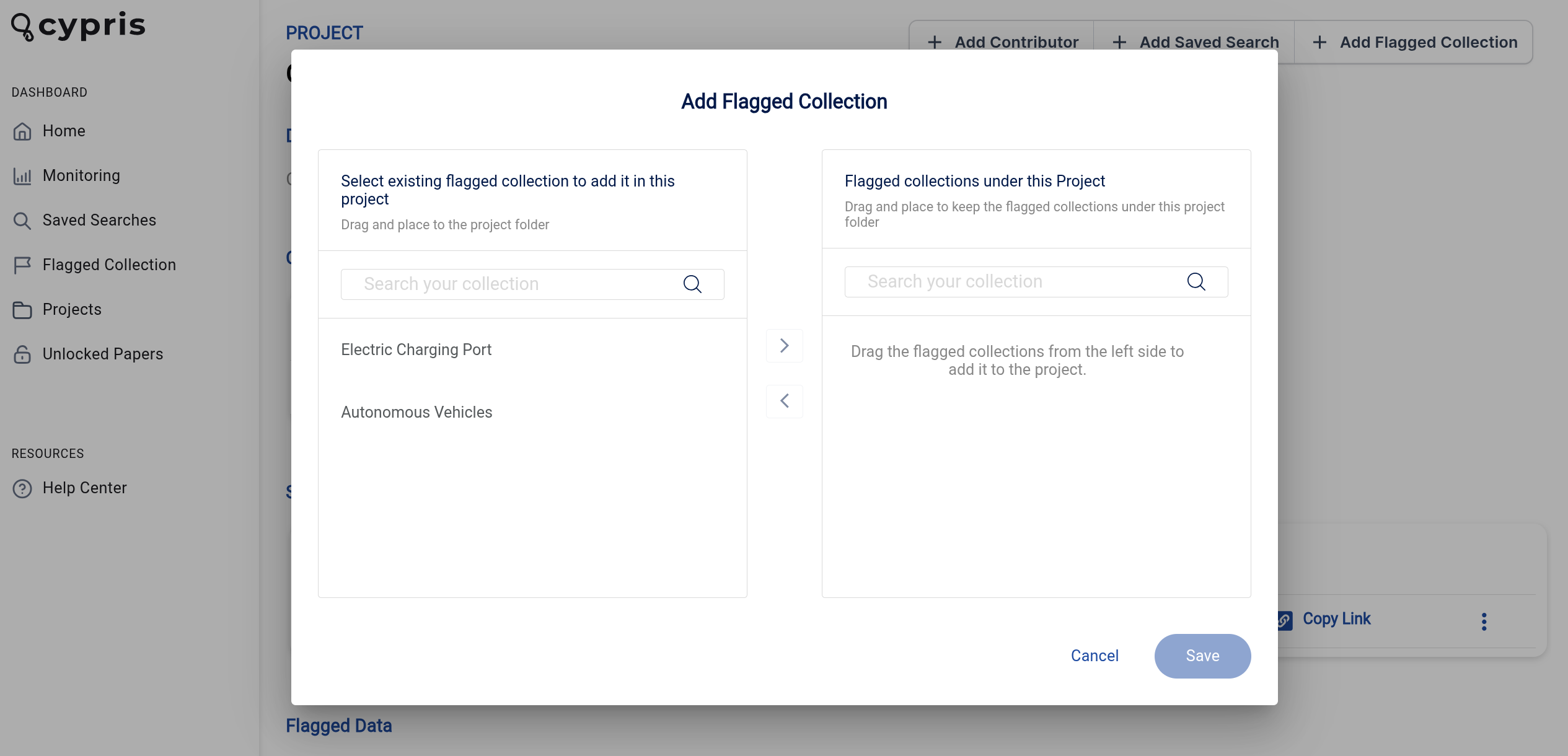
You can also add flagged data collections to your projects.
On the left side you’ll see existing flagged collections you can choose to add to your selected project. On the right side, you’ll see current collections in the project. Click on any collection to select it and use the arrows to move the collection to the left or right.
Adding Contributors
Click the +add contributor button within a project to add contributors to a project.
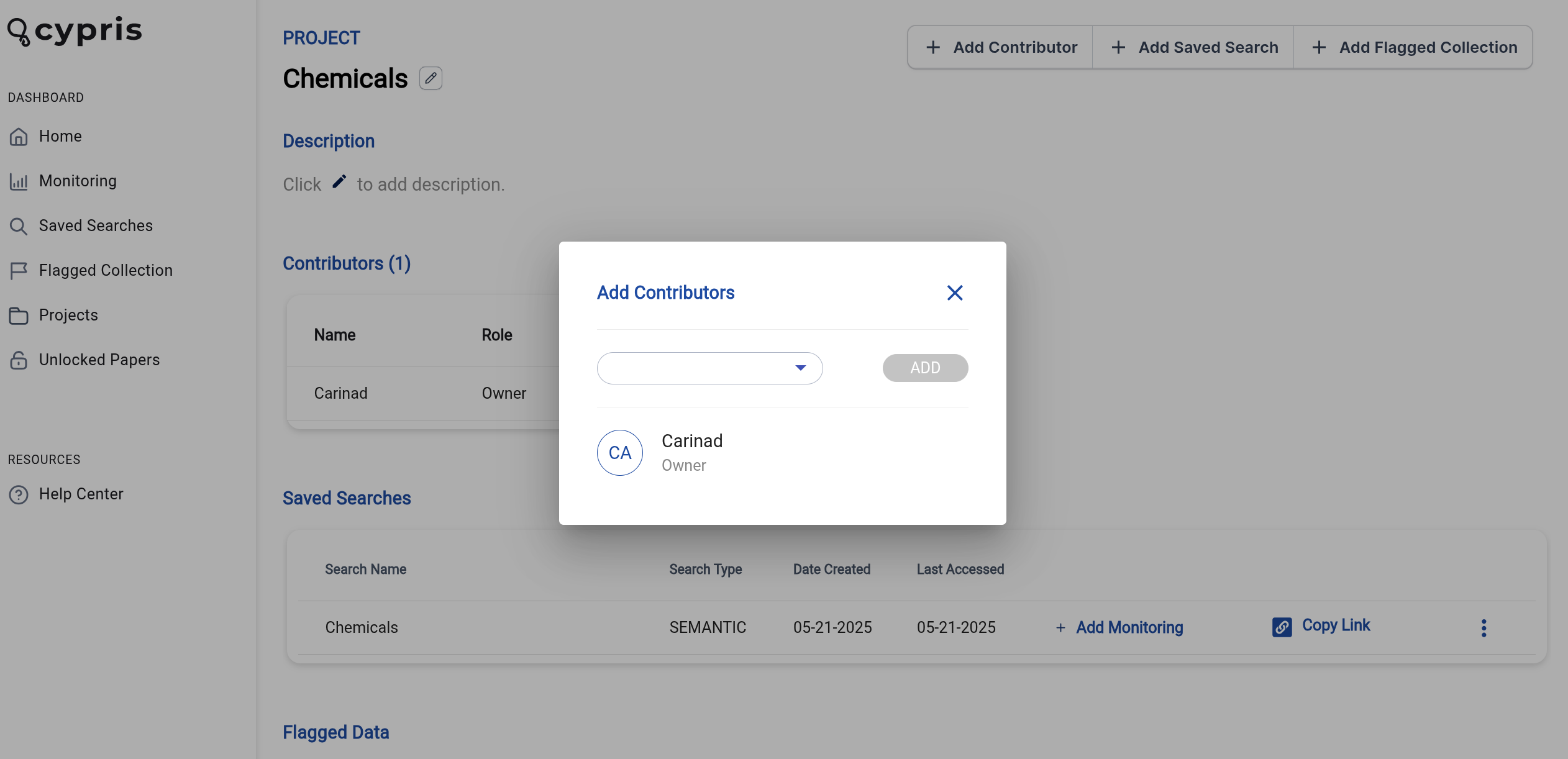
Select your team member's name and click add.
Contributors will have the ability to add saved searches and view items that are in the project folder.
How to Use Organization Monitoring
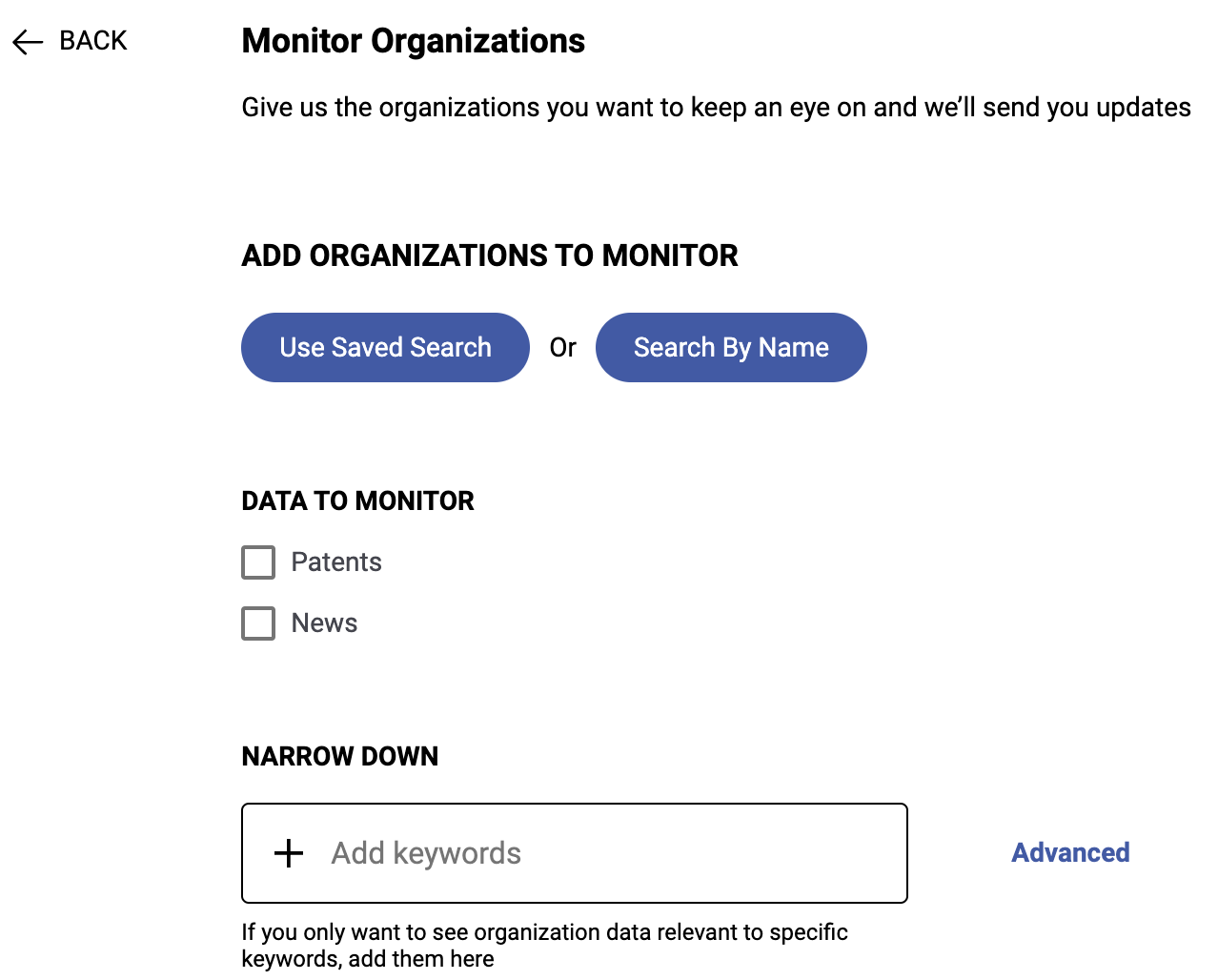
Organization monitoring will allow users to monitor patent and market news of the selected entities' names.
Before we get into the steps to set up monitoring, let's define a few terms that are important to understand at the start.
- Automated Monitoring: Cypris' method for sending updates on topics of your interest automatically to your email inbox, providing access to the datatypes hosted within the Cypris platform in a highly convenient and accessible way
- Saved Search: This refers to a report or the defining query of a report that you've already built and saved to your Cypris account. These saved searches are represented as reports in the "Reports" section of the Cypris platform landing page.
- Recipients: The people who will receive the automated monitoring deliveries, specified by entering their emails within the set-up process
- Frequency: The cadence which you will receive updates on that monitoring instance.
You Can Set Up Organization Monitoring in Two Ways:
Method A: Use Saved Search
"Used Saved Search" will allow users to use a previously built saved Company search
- Used Saved Search will allow users to use a previously built saved company search
- Once the report is selected, select the data types you are interested in monitoring. Users can select Patent and/or News when monitoring organizations
- After the data is selected, click Add Recipients
- Once the recipients are added, click Add Frequency
- Select the frequency of your choice and select the day of the week that you would like to receive your monitoring report and subsequent update
- Finally, select Create Monitoring
Method B: Search By Name
"Search by Name" enables you to conduct a fresh search for entities to track as opposed to using a previously saved search
- Click Search by Name and in the "Organization Name" search bar at the top of the page, start searching for entities of interest
- After selecting the entities of interest, click add organization in the top right corner of the page
- After the organizations are added, select the data types you are interested in monitoring. Users can select Patent and/or News
- After the data is selected, click Add Recipents
- Once the recipients are added, click Add Frequency
- Select the frequency of your choice and select the day of the week that you would like to receive your monitoring report and subsequent updates
- Finally, select Create Monitoring
What Comes Next
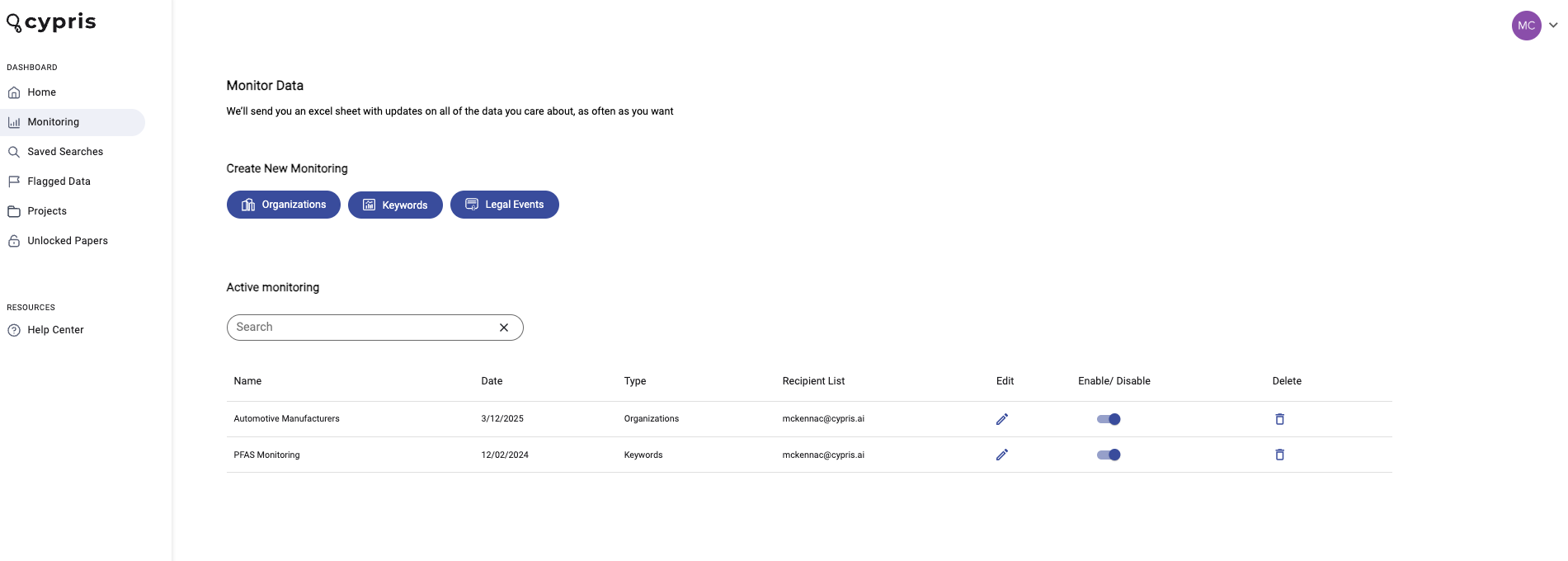
Once you finish setting it up, the monitoring campaign will be displayed as an item on the monitoring dashboard. You will get automated emails with the content matching your monitoring parameters on the cadence you specified in the set up. If there is not content matching your criteria at the time of delivery, you will receive an email stating that finding.
Editing Active Monitoring
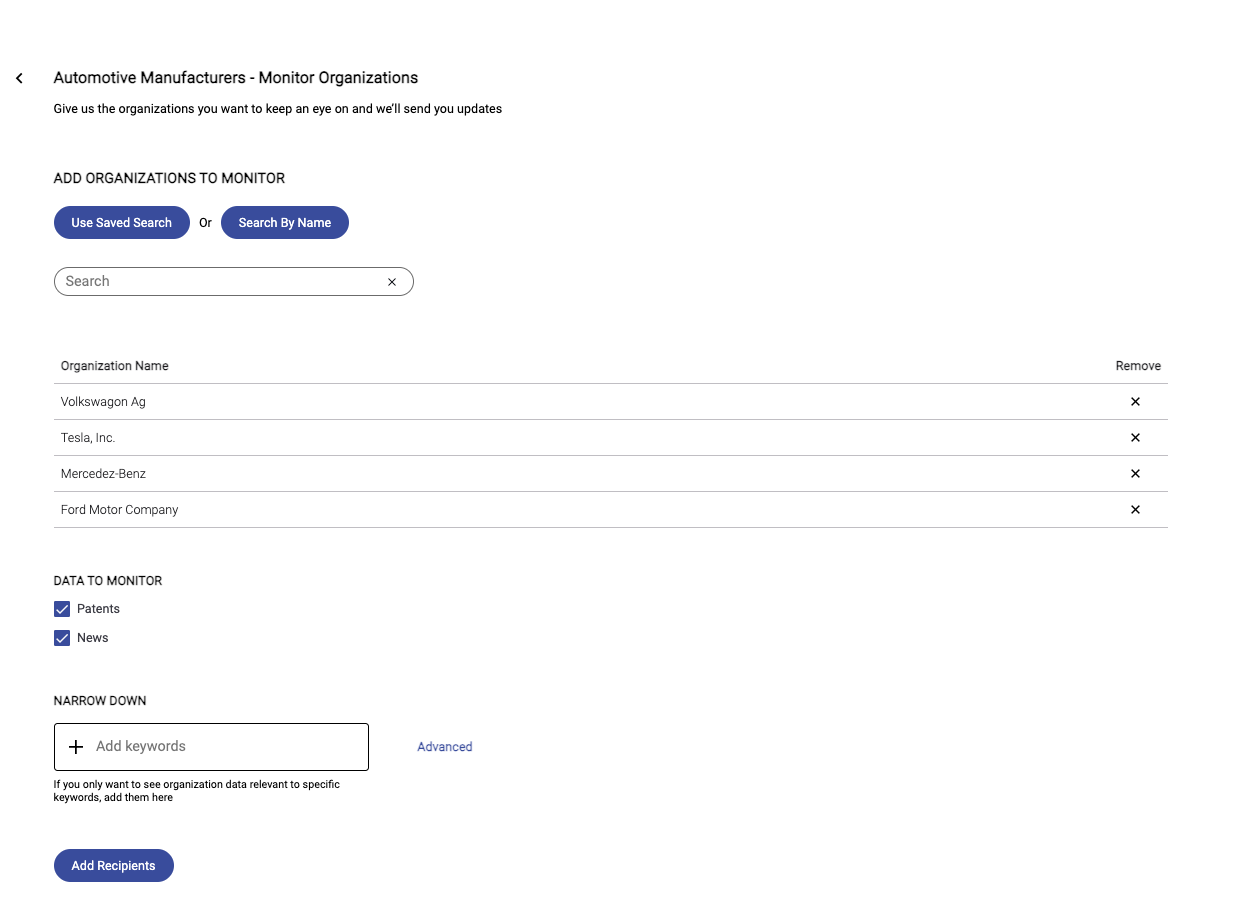
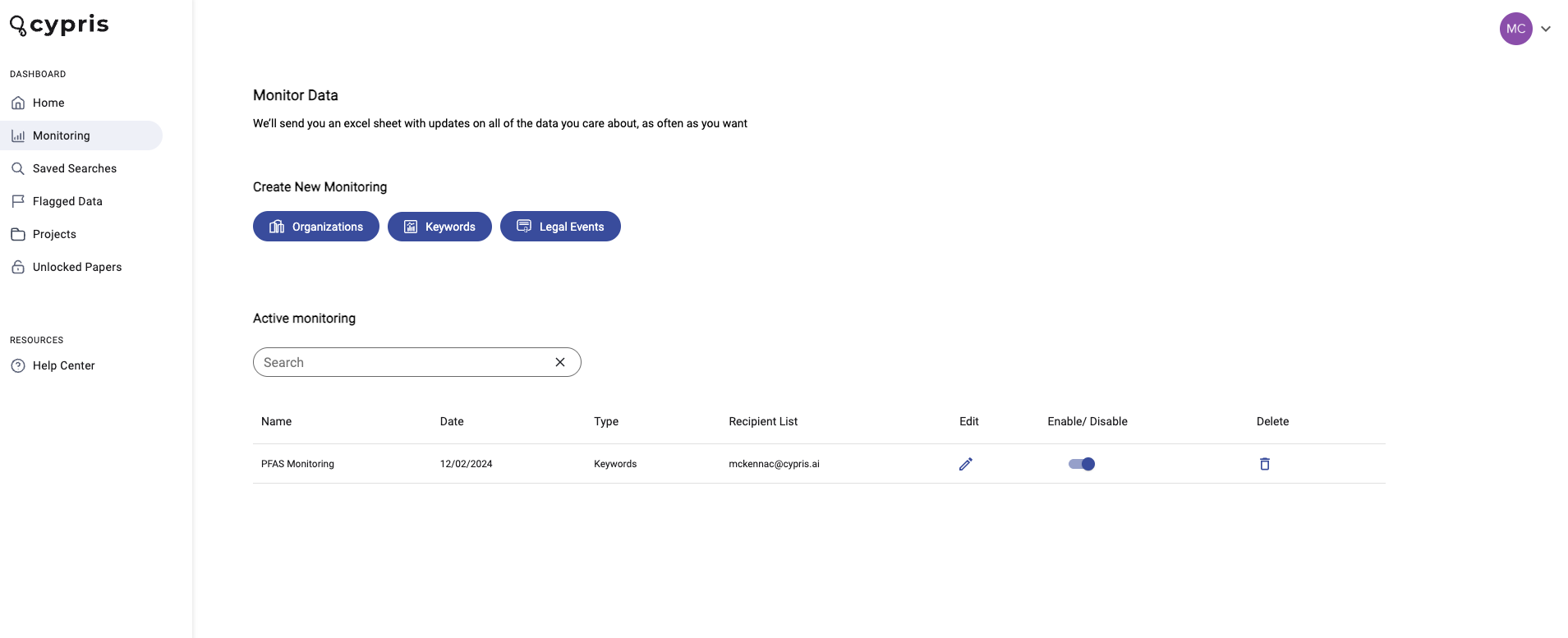
From the monitoring page, you cal also enable/disable monitoring using the toggle, as well as delete or edit current monitoring you have running.
Selecting edit will take you to the following view, where you can quickly make changes.
We’re excited to announce the launch of a few new features on the Cypris platform: Charts & Analytics Tab, Research Paper Citations, and Author Institutions.
Why We Built These Features
Charts & Analytics
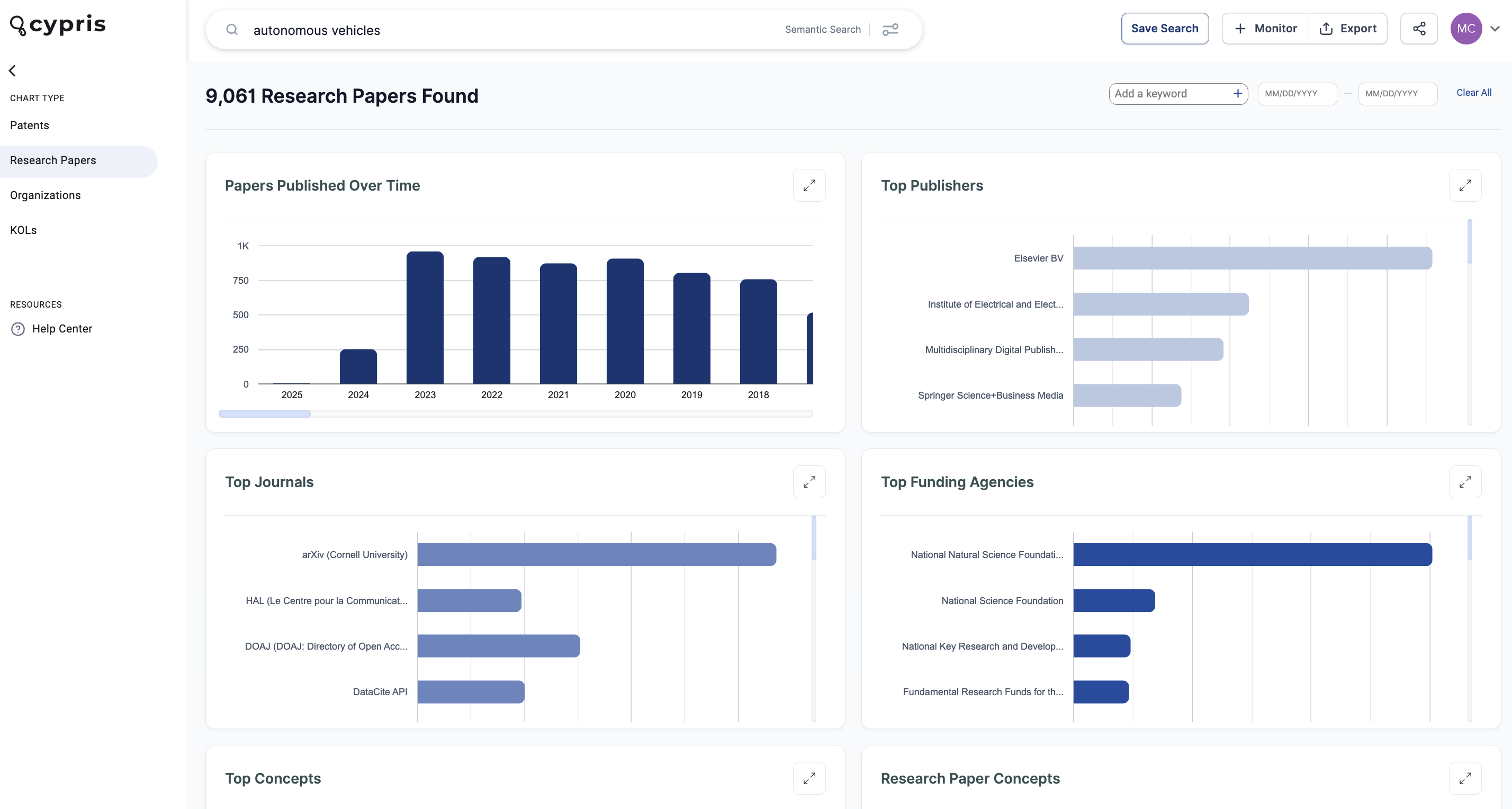
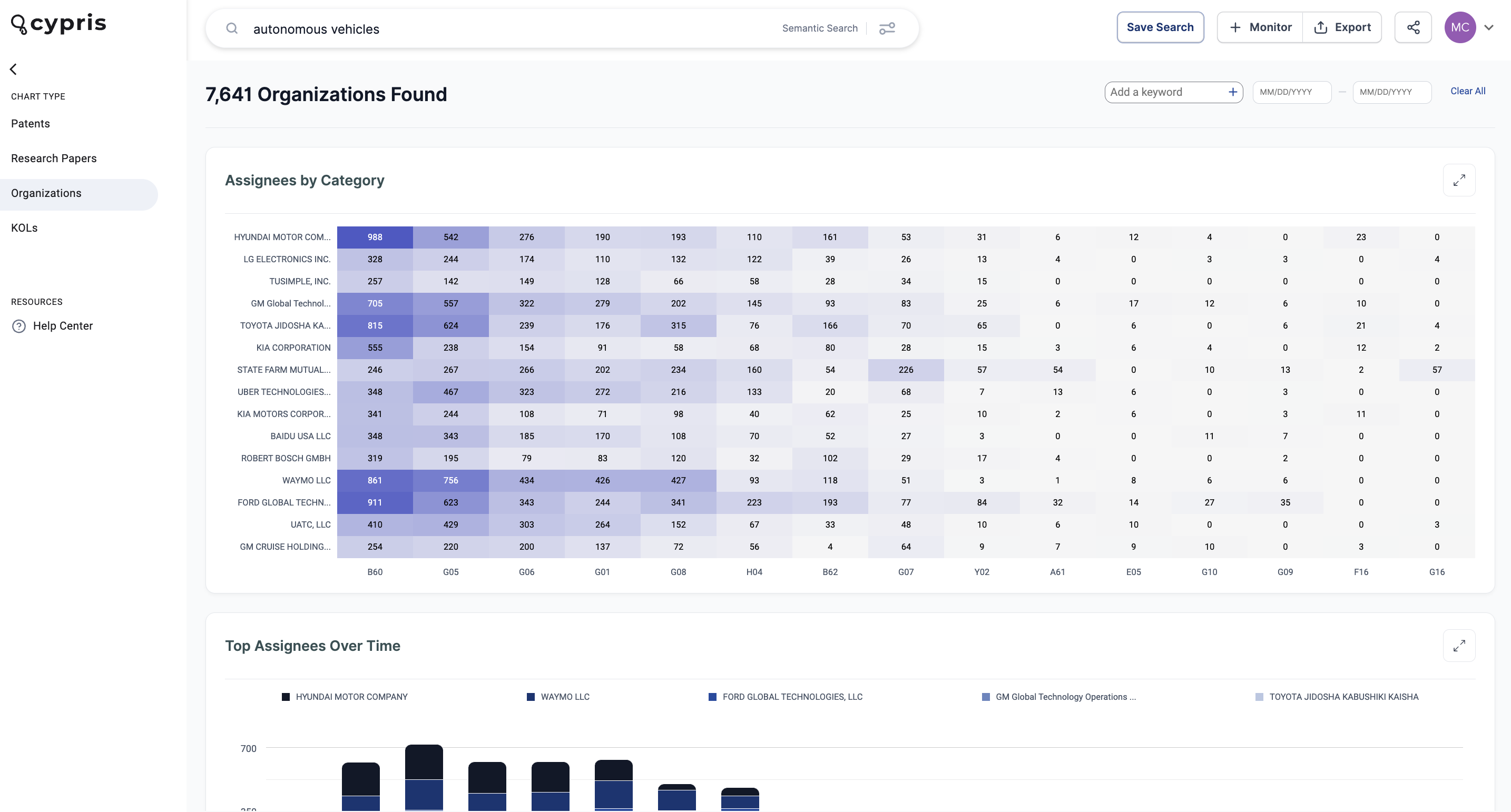
The new Charts & Analytics tab was designed to enhance the exploration of search results. It provides a more insightful experience, enabling you to gain a holistic and detailed view of the data returned from a query.
Key Benefits
- Trend Analysis: Go beyond basic "over time" charts to uncover deeper insights. Track the influence of key inventors or organizations, visualize research focus areas, and discover emerging trends in innovation.
- Dedicated Charts for Each Data Type: Separate, easy-to-navigate tabs for research papers, patents, organizations, and KOLs.
- Centralized Insights: All Charts & Analytics data is now available in a single, centralized location, making it easier to uncover trends and identify insights from search results.
Research Paper Citations & Author Institutions Filter
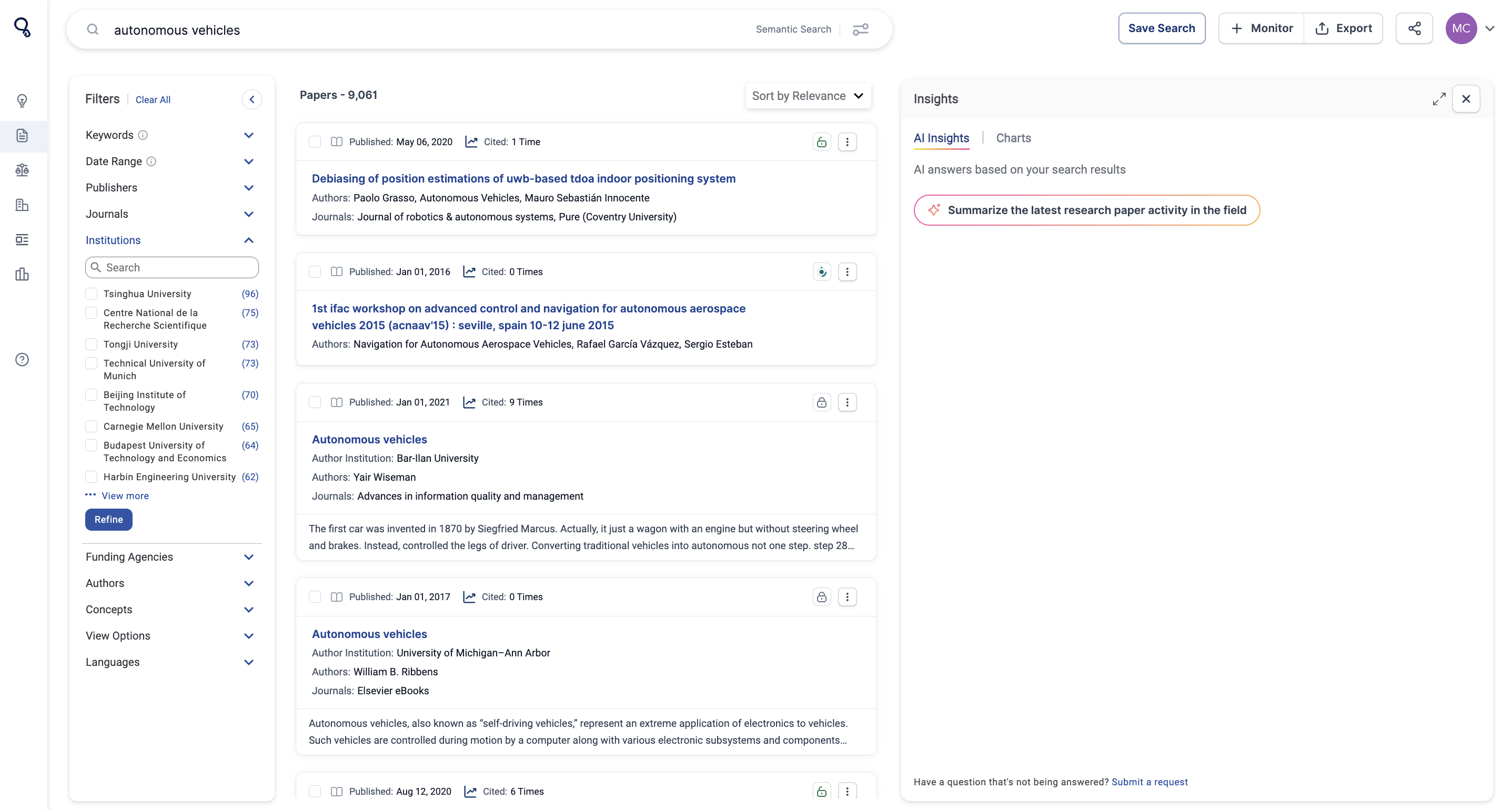
Users can now sort by ‘most cited’ in the research papers tab and filter by the author’s institution.
Key Benefits
- Paper citations are a powerful tool for identifying the most impactful research within a query.
- Our platform provides publisher-agnostic citation data across 11,000 journals, ensuring users can access accurate information on which pieces of scientific literature deserve their attention.
- By sorting by ‘most cited’ and then applying the Author Institutions filter, users can connect the dots to uncover the most influential research institutions in a given field, based on which organizations have the most cited papers.
User Needs Addressed
These features address several key needs:
- Centralized Visualizations: All data visualizations are now consolidated into one dedicated area on the dashboard.
- Identify High-Impact Research: Sort by ‘most cited’ to see the most impactful research in a field.
- Analyze Leading Institutions: Uncover the top research institutions in a field through the institutions filter.
How It Works
Charts & Analytics
The Charts & Analytics tab offers four types of visualizations: Patents, Research Papers, Organizations, and Key Opinion Leaders (KOLs). Here's how to use it:
- Run a search and navigate to the Charts & Analytics tab on the left side of the platform.
- Choose from four options: Patents, Research Papers, Organizations, or KOLs.
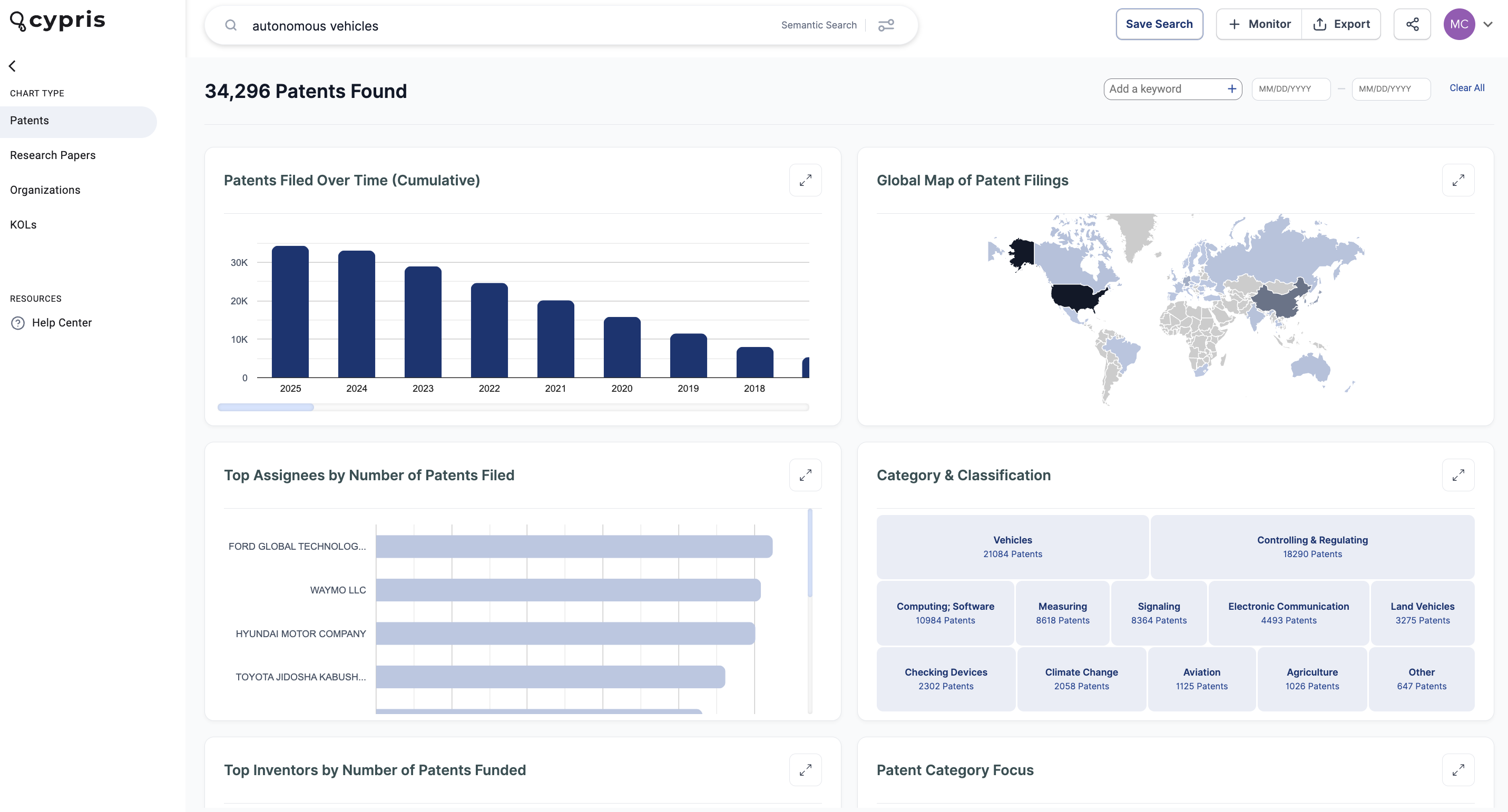
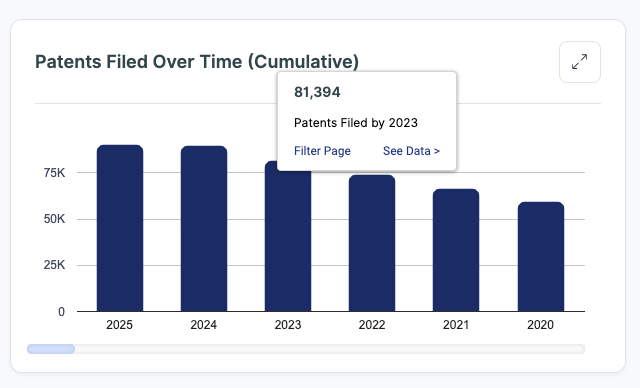
- Each chart allows you to filter the data on the page or click the "See Data" button to explore detailed insights for the selected chart.
Research Paper Citations & Author Institutions Filter
In the Research Papers section, you can now sort results by the most cited papers and view their citation counts. Additionally, a new filter on the left-hand side allows you to narrow results by Author Institutions for more targeted exploration.
How to Use Legal Event Monitoring
Legal Events Monitoring allows users to monitor the most recent legal events of a list of selected patents
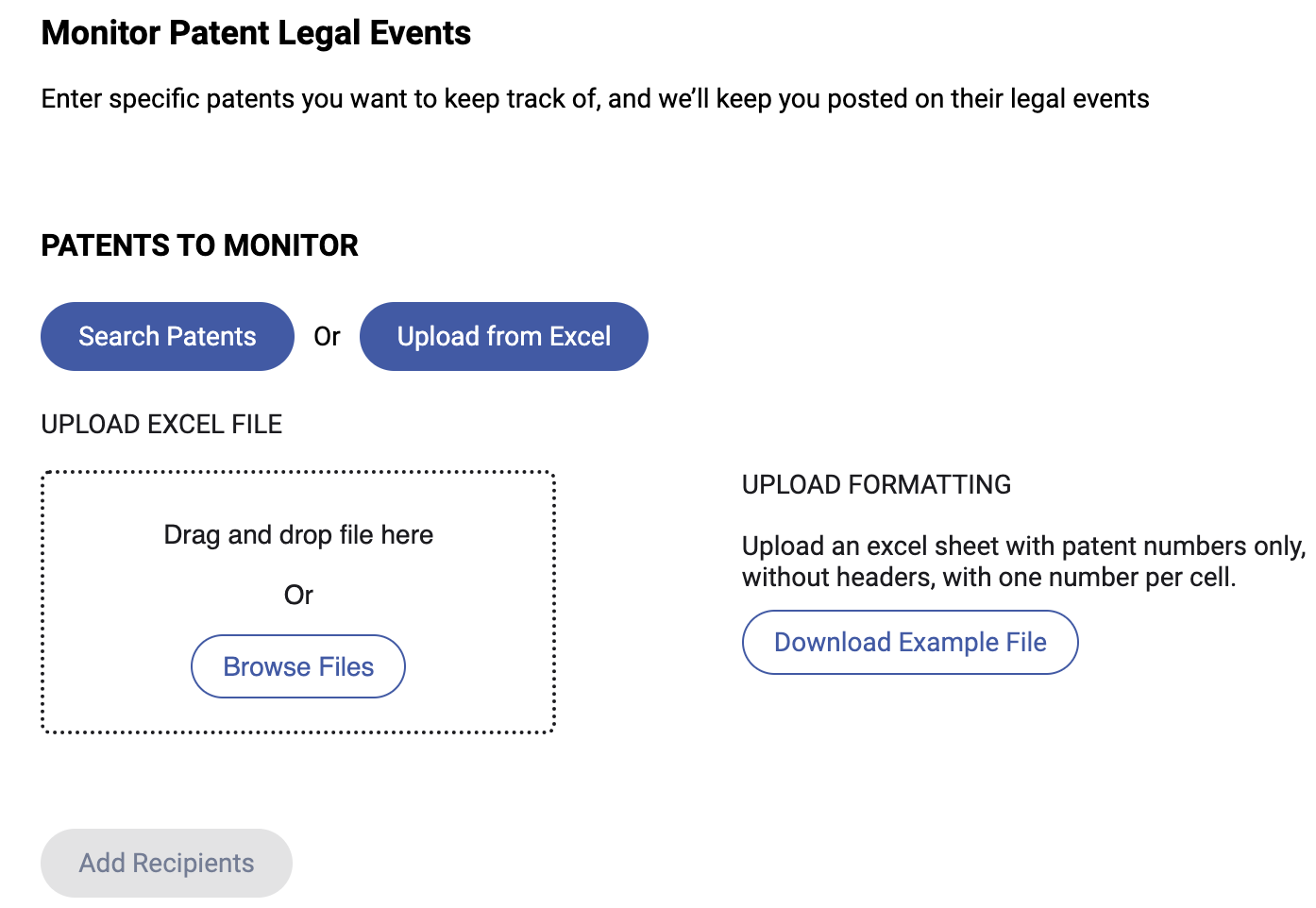
Before we get into the steps to set up monitoring, let's define a few terms that are important to understand at the start.
- Automated Monitoring: Cypris' method for sending updates on topics of your interest automatically to your email inbox, providing access to the datatypes hosted within the Cypris platform in a highly convenient and accessible way
- Saved Search: This refers to a report or the defining query of a report that you've already built and saved to your Cypris account. These saved searches are represented as reports in the "Reports" section of the Cypris platform landing page.
- Recipients: The people who will receive the automated monitoring deliveries, specified by entering their emails within the set-up process
- Frequency: The cadence which you will receive updates on that monitoring instance.
You Can Set Up Legal Events Monitoring in Two Ways:
Method A: Search Patents
- Search Patents will allow users to add individual patent numbers which can be monitored for most recent legal events
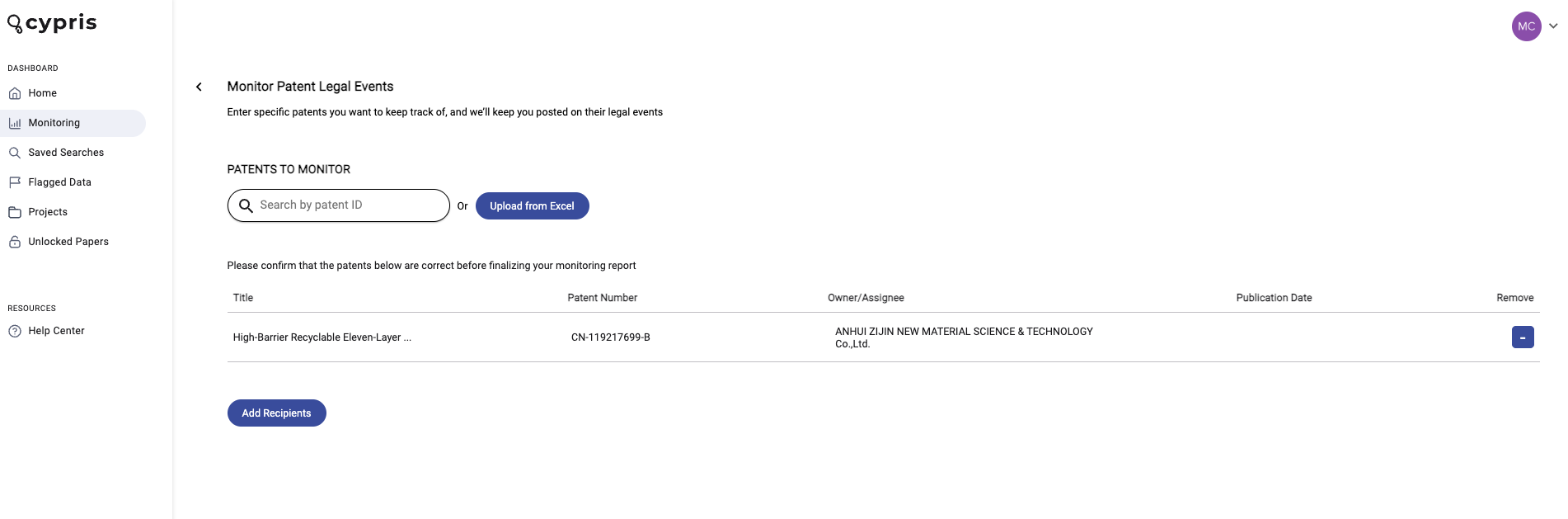
- Type in the individual patent number(s), hit enter to trigger the search, then select "+" button under Add on the right side of the page
- Once the patents are added, click Add Recipients
- Once the recipients are added, click Add Frequency
- Select the frequency of your choice and select the day of the week that you would like to receive your monitoring report and subsequent updates
- Finally, select Create Monitoring
Method B: Upload from Excel
This method will allow user to upload a list of patents from Excel providing it is formatted correctly. Patent numbers must be in the left-most column with no header and can have only one patent number per row. For example, your first patent number should be in cell A1, the second in A2, the third in A3, and so on.
- Upload your Excel file containing the patent numbers for those you'd like to monitor for legal event updates. Should you need it, we have a correctly formated example excel file available for download directly on this page.
Note: It may take up to one minute for our system to extract the data from file - After the Excel Document is added and data extracted correctly, click Add Recipients
- Once the recipients are added, click Add Frequency
- Select the frequency of your choice and select the day of the week that you would like to receive your monitoring report and subsequent updates
- Finally, select Create Monitoring
What Comes Next
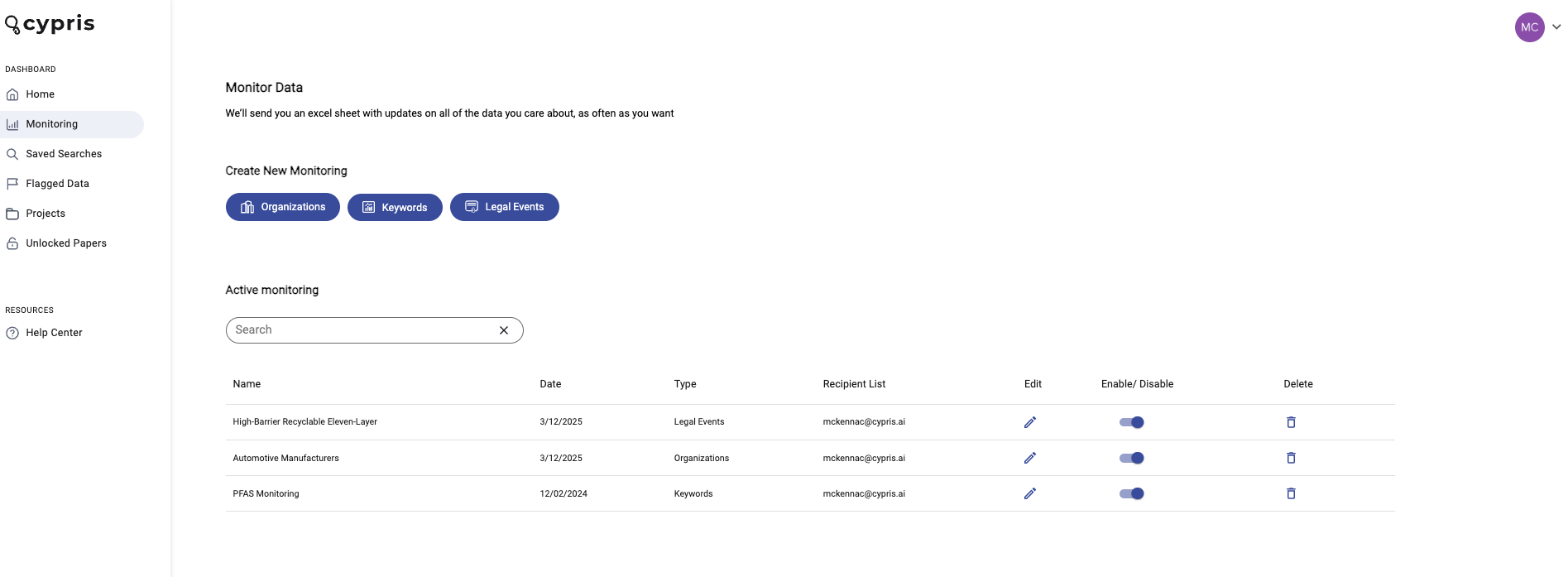
Once you finish setting it up, the monitoring campaign will be displayed as an item on the monitoring dashboard. You will get automated emails with the content matching your monitoring parameters on the cadence you specified in the set up. If there is not content matching your criteria at the time of delivery, you will receive an email stating that finding.
Editing Active Monitoring
From the monitoring page, you cal also enable/disable monitoring using the toggle, as well as delete or edit current monitoring you have running.
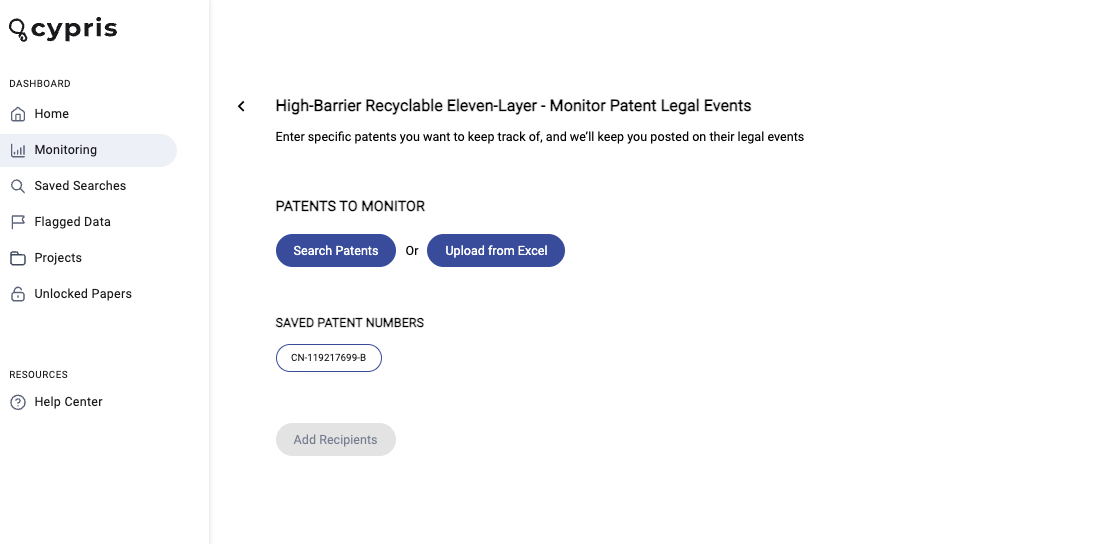
Selecting edit will take you to the following view, where you can quickly make changes.
The Cypris Team has deployed a new UI that will allow for a more fluid search and discovery process, designed to create a lighter and more intuitive experience for users exploring new technologies and landscapes. With these upgrades, we aim to continuously enhance our platform's user interface, aligning with best UI practices to provide an elegant and seamless search experience.
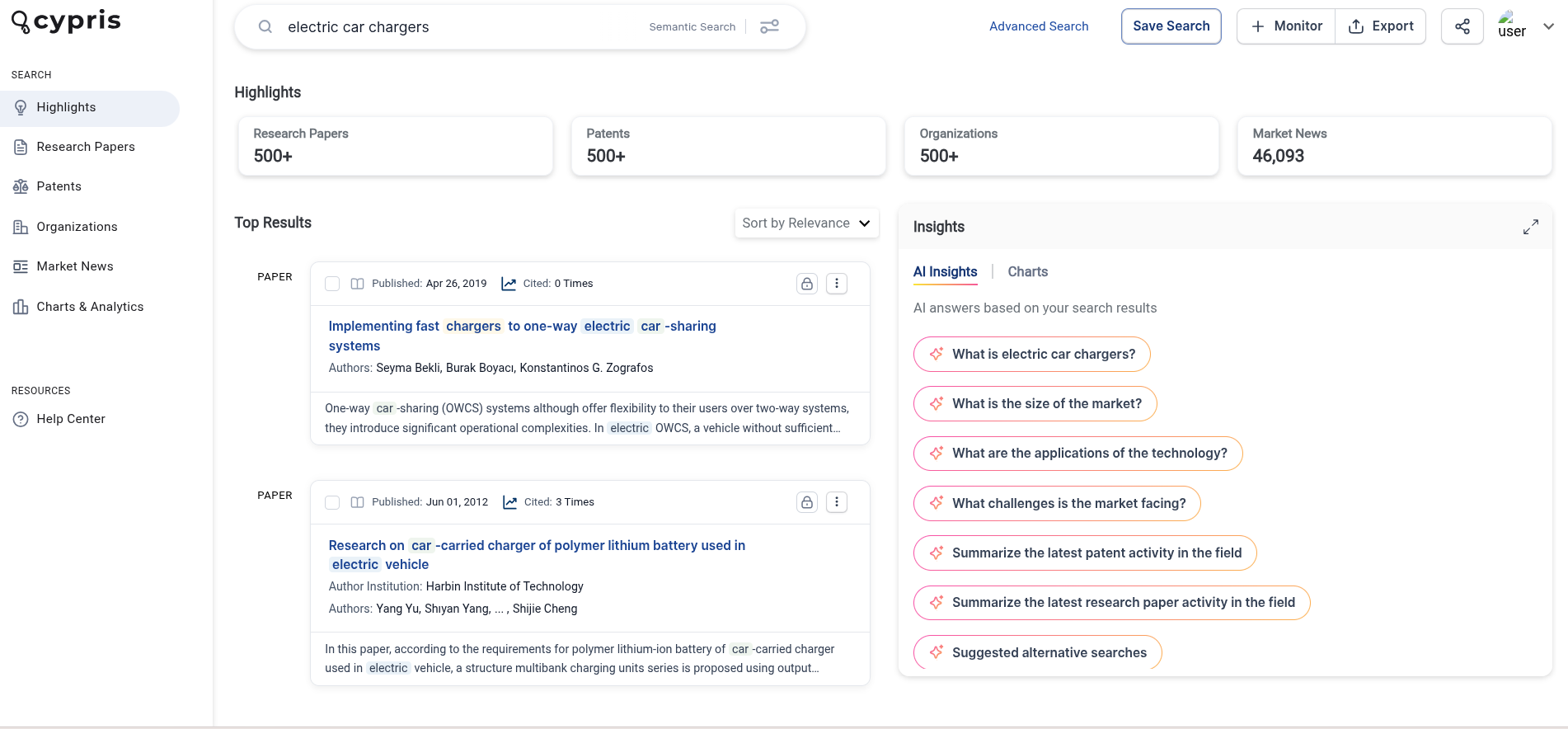
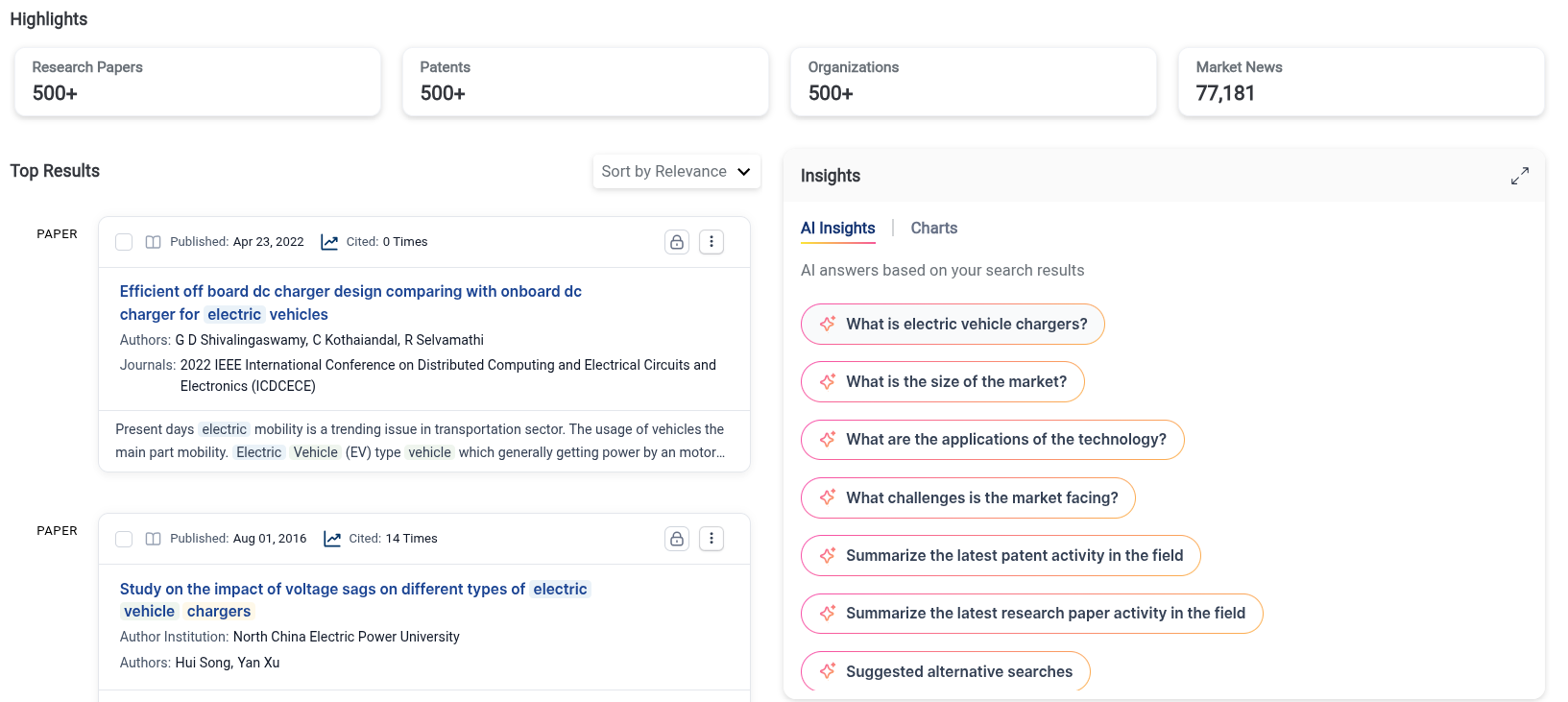
Highlights of the New UI
Single Search Bar
We’ve created a single search bar to allow our users to have an ideal searching experience. From the single search bar, our users will be able to create Boolean, Semantic, & Organization searches.

Upgraded Highlights Section
The highlights section will now be centrally located and highlight the amount of Patents, Research Papers, Organizations, & News Articles from the search query. The highlights section will also include the AI Insights for the search query.
How to Use Keyword Monitoring
Keyword monitoring allows users to monitor Patents, Research Papers, Organizations, and Market News of specific keywords.
Before we get into the steps to set up monitoring, let's define a few terms that are important to understand at the start.
- Automated Monitoring: Cypris' method for sending updates on topics of your interest automatically to your email inbox, providing access to the datatypes hosted within the Cypris platform in a highly convenient and accessible way
- Saved Search: This refers to a report or the defining query of a report that you've already built and saved to your Cypris account. These saved searches are represented as reports in the "Reports" section of the Cypris platform landing page.
- Recipients: The people who will receive the automated monitoring deliveries, specified by entering their emails within the set-up process
- Frequency: The cadence which you will receive updates on that monitoring instance.
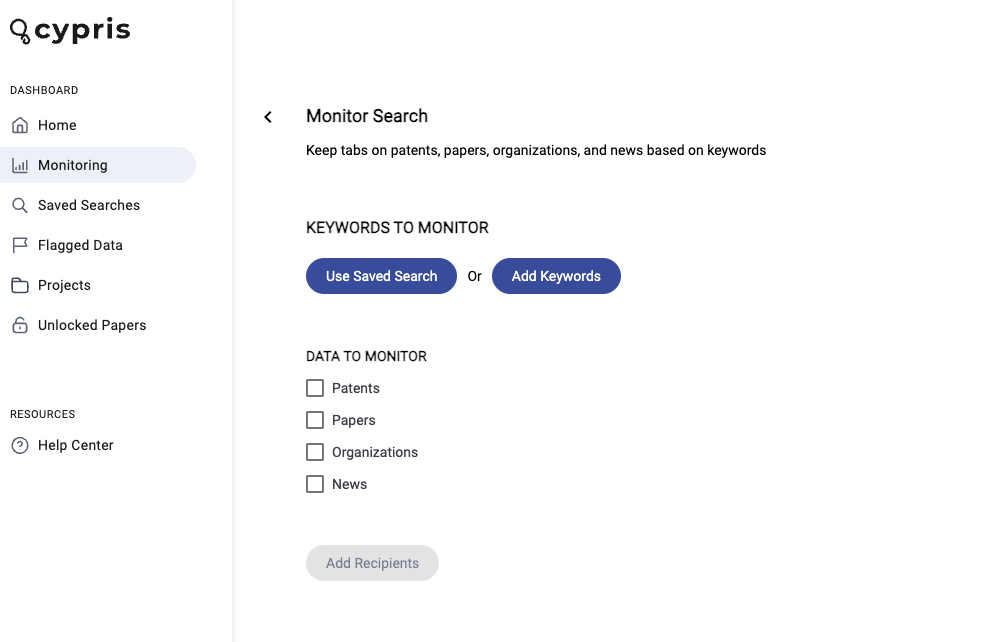
You Can Set Up Keyword Monitoring in Two Ways:
Method A: Use Saved Search
"Used Saved Search" will allow users to use a previously built saved technology report
- Select a Saved Search to use that will define the content included in the monitoring campaign
- Once the report is selected, select the data types you are interested in monitoring. Users can select Patents, Research Papers, Organizations, and/or Market News
- After the data is selected, click Add Recipients
- Once the recipients are added, click Add Frequency
- Select the frequency of your choice and select the day of the week that you would like to receive your monitoring report and subsequent updates
- Finally, select Create Monitoring
Method B: Add Keywords
Add Keywords will allow users to build a query through the Boolean Search Bar or by clicking Advanced
- Select Add Keywords
- Using the text box that appears, build a query through Semantic Search, Boolean Search, or by clicking Advanced (Advanced will take you to the Advanced Search function that you may be familiar with from building a technology report)
- After building the query select Save and Continue
- Once the query is built, select the data types you are interested in monitoring. Users can select Patents, Research Papers, Organizations, and/or Market News
- After the data is selected, click Add Recipients
- Once the recipients are added, click Add Frequency
- Select the frequency of your choice and select the day of the week that you would like to receive your monitoring report and subsequent updates
- Finally, select Create Monitoring
What Comes Next
Once you finish setting it up, the monitoring campaign will be displayed as an item on the monitoring dashboard. You will get automated emails with the content matching your monitoring parameters on the cadence you specified in the set up. If there is not content matching your criteria at the time of delivery, you will receive an email stating that finding.
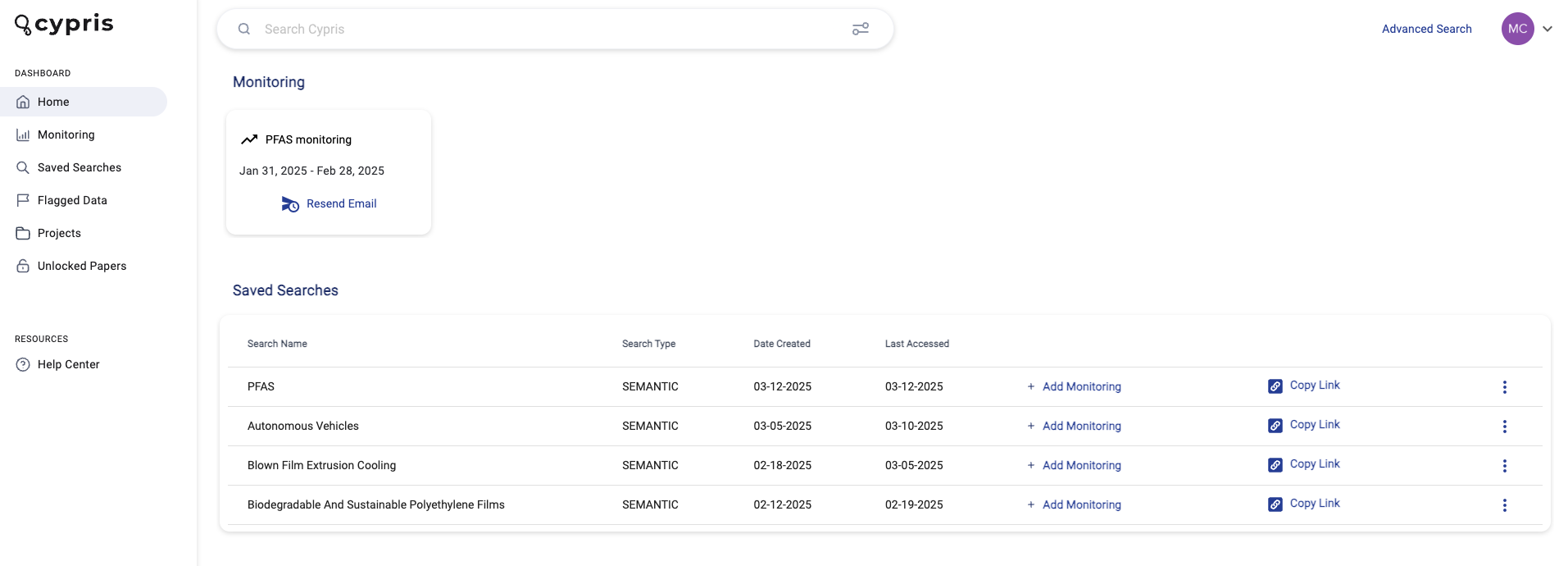
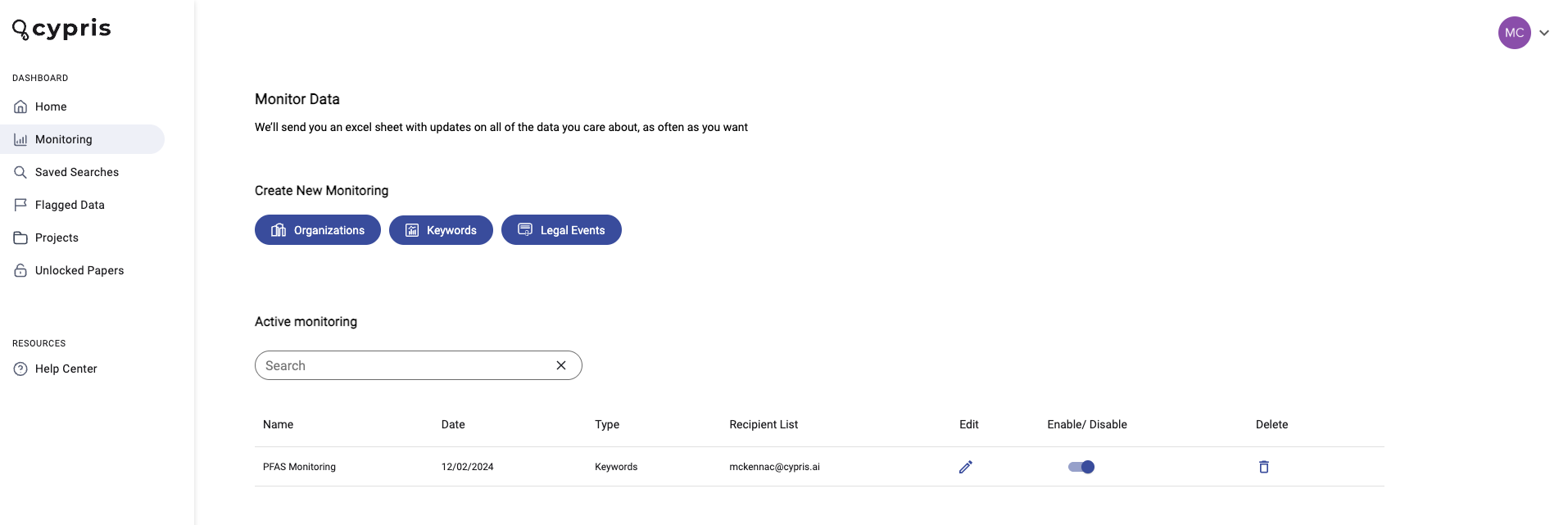
Editing Active Monitoring
From the monitoring page, you cal also enable/disable monitoring using the toggle, as well as delete or edit current monitoring you have running.
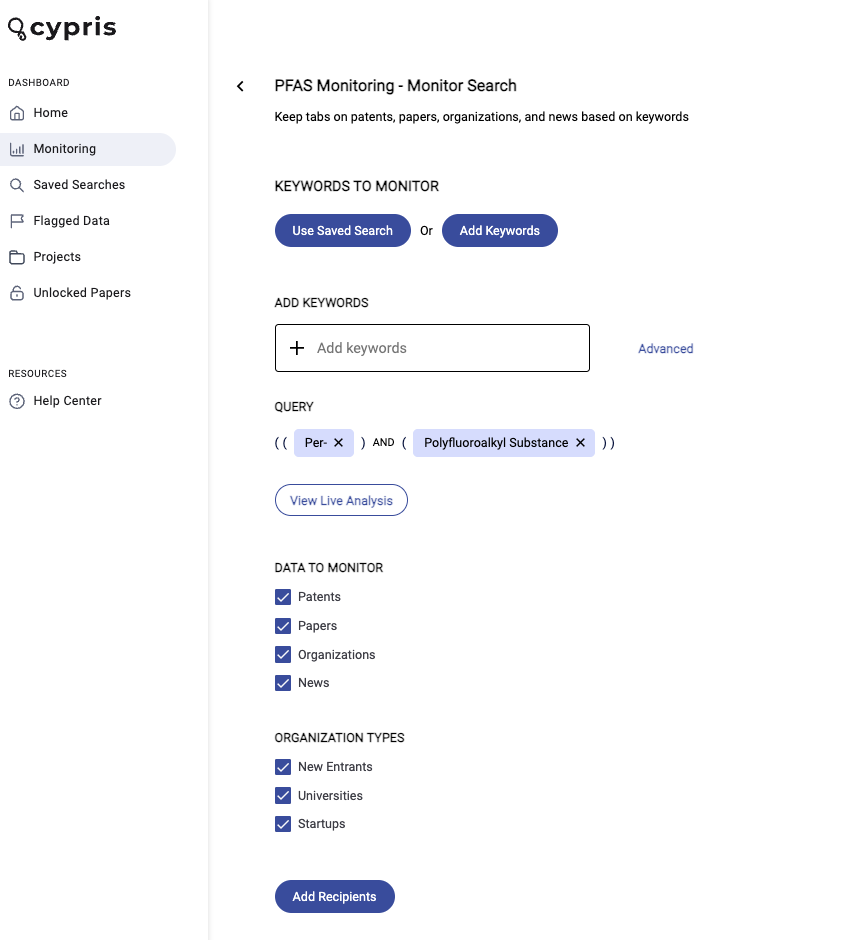
Selecting edit will take you to the following view, where you can quickly make changes.
.avif)